
HidVPN earns a commission if you buy through some of the links on this page. It doesn’t change what we write, and two of the three providers below appear in the “when kill switches fail” section too. Our affiliate disclosure.
Table of Contents
- The short answer
- What happens when a VPN drops
- The two types of kill switch
- What it looks like in a real app (NordVPN on Windows)
- Do you need one?
- Your phone may already have one built in
- How NordVPN, PureVPN and FastestVPN handle it
- How to check your kill switch properly
- When kill switches and tunnels fail: three real cases
- Kill switches and split tunneling
- The downsides
- FAQ
- The bottom line
Key Takeaways
- A kill switch blocks your internet when the VPN connection drops, so nothing goes out unprotected while the app reconnects.
- Use the system-level (internet) version where you can. App-level only protects the apps you list.
- In the NordVPN Windows app we opened (version 8.10.3.0), both kill switches were off and auto-connect was set to Never. Switch them on yourself.
- Don’t trust a “what’s my IP” website alone. Check your device’s routing table before and during a drop. It takes two minutes.
- Kill switches can fail in edge cases. PureVPN’s Linux app leaked IPv6 traffic after Wi-Fi reconnects in 2025, and PureVPN has since hardened its IPv6 kill switch.
The short answer
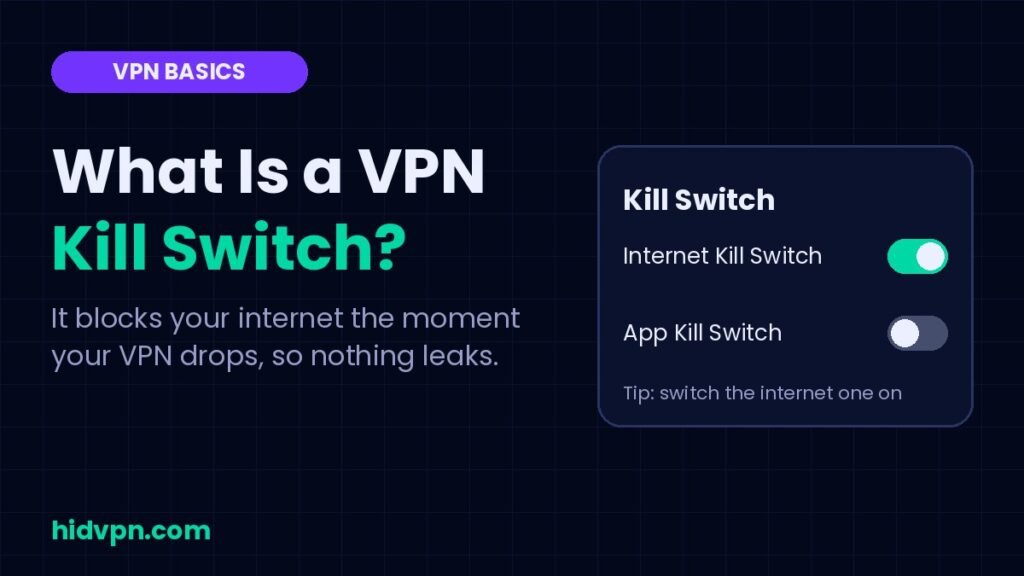
A VPN kill switch is a safety net. If your VPN connection drops, the kill switch blocks your internet until the VPN is back, so nothing is sent over your normal, unencrypted connection in the meantime.
Without one, a dropped VPN usually fails quietly. Your browser and apps carry on using your regular connection, your real IP address (the number that identifies your connection to every site you visit) is visible again, and you often won’t notice.
What happens when a VPN drops
VPN connections drop more often than people expect, and the reasons are ordinary:
- Your phone switches from Wi-Fi to mobile data, or between two Wi-Fi networks.
- Hotel or café Wi-Fi cuts out for a moment, or its login page times out.
- Your laptop wakes from sleep before the VPN app has reconnected.
- The VPN server you’re on restarts or gets overloaded.
Each of these leaves a gap of a few seconds, sometimes longer, between the tunnel going down and the app reconnecting. Apps that are already running don’t wait for the VPN to come back. Email syncs, messaging apps check in and open tabs refresh, all over your normal connection. On public Wi-Fi that means the network operator, and anyone else watching that network, can see that traffic again. At home it means your internet provider can.
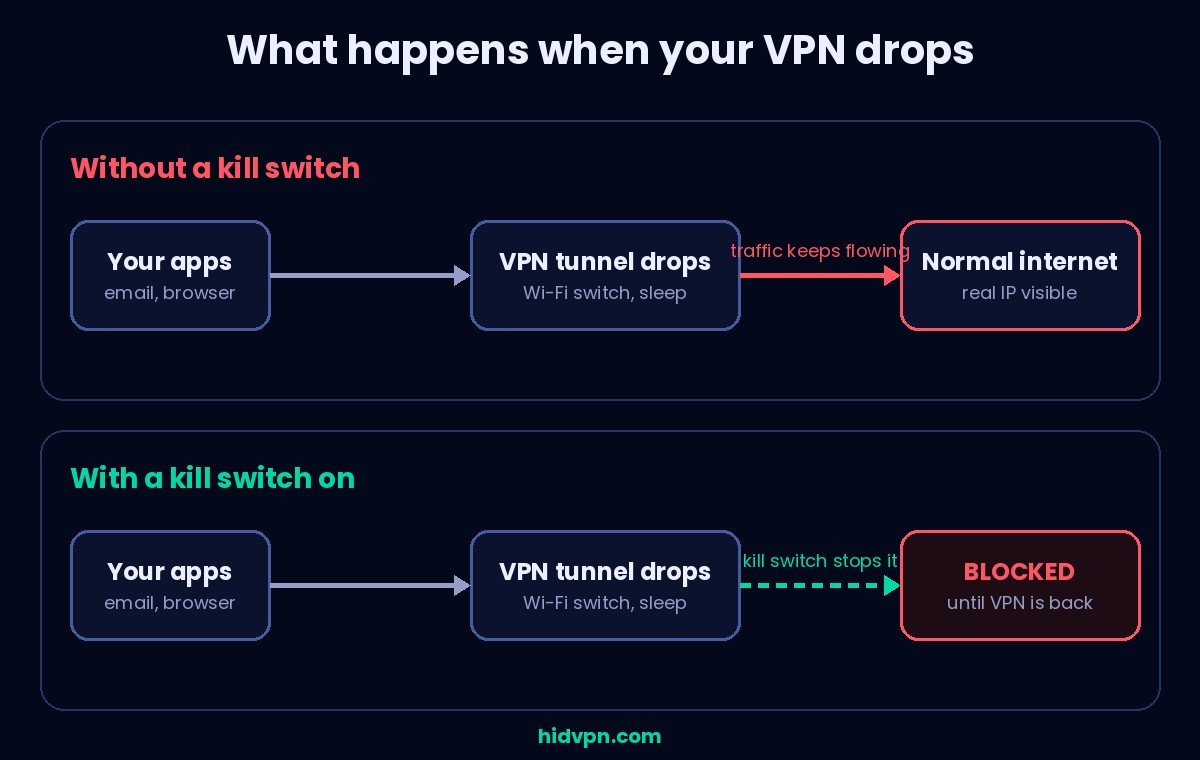
A kill switch treats “VPN not connected” as “no internet”, so there’s no unprotected window at all.
Watch: what happens when a VPN drops, with and without a kill switch (HidVPN explainer)
The two types of kill switch
Providers use different names, but most kill switches fall into one of two types.
System-level (often called an internet kill switch). This blocks all internet traffic on the device whenever the VPN isn’t connected. It’s the stricter option and the one most people should use. The trade-off is that nothing works while the VPN is down, which can be confusing if you forget it’s on.
App-level. Instead of cutting everything, this closes specific apps you choose when the VPN drops, for example a browser or a messaging app. The rest of your device keeps its connection. It’s gentler, but it only protects the apps on your list.
If you’re not sure which to pick, choose system-level. It’s the one that doesn’t depend on you remembering which apps matter.
What it looks like in a real app (NordVPN on Windows)
When we recorded our NordVPN walkthrough, we opened the kill switch settings in the Windows app (version 8.10.3.0). The screenshot below is from that recording.
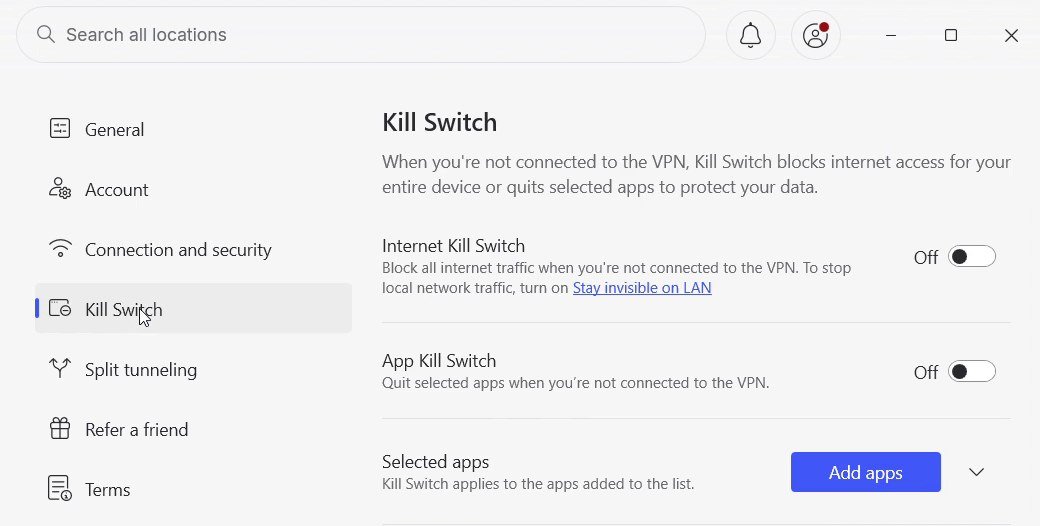
Two things stood out:
- Both types are there. “Internet Kill Switch” blocks all traffic when you’re not connected, and “App Kill Switch” quits only the apps you add with the Add apps button. This matches NordVPN’s support documentation.
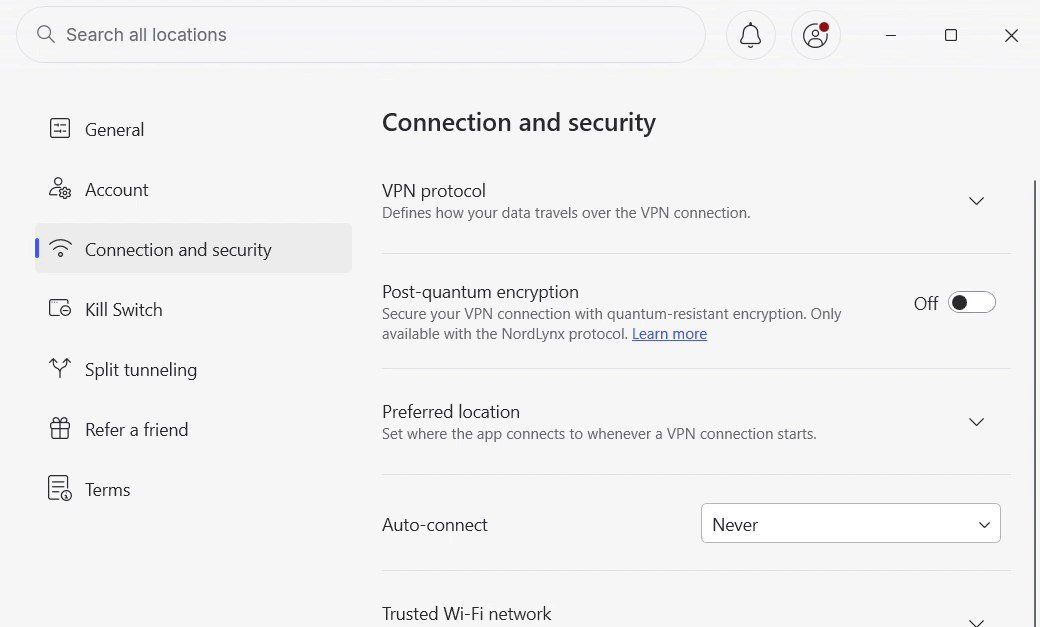
- Both were off. So was auto-connect, set to “Never” under Connection and security. On a fresh install you have to switch these on yourself, and most people never open settings.
The kill switch part of our walkthrough video starts at 0:45:
Do you need one?
For most people using a VPN for privacy, yes. It costs nothing, it’s built into most paid VPN apps, and the only downside is occasionally having no internet for a few seconds. It matters most in these situations:
- Public Wi-Fi. Airports, hotels and cafés are where connections drop most, and where you least want traffic going out unprotected. See what can go wrong on public Wi-Fi.
- Moving between networks. Phones switch between Wi-Fi and mobile data constantly, and every switch is a chance for a gap.
- Anything you’d rather your internet provider didn’t log. A short drop is enough for your provider to see which sites you were connecting to. More on that in what your ISP can see.
- Working remotely. If your job expects work traffic to go through a VPN, a kill switch stops it going out unprotected when the connection hiccups.
It matters less if you only use a VPN now and then for low-stakes browsing at home. Even then, there’s little reason to leave it off.
Your phone may already have one built in
Android has a system setting that works as a kill switch for whichever VPN app you use. Go to Settings, then Network & internet, then VPN (the exact path varies by phone maker). Tap the settings icon next to your VPN and turn on Always-on VPN and Block connections without VPN. With both on, Android itself blocks traffic that isn’t going through the VPN, according to Google’s own Android help pages.
iPhone and iPad have no equivalent switch in Settings. It’s handled inside each VPN app, so check your app’s settings, or its help pages if you can’t see an option. NordVPN’s iOS app, for example, has its kill switch on by default with no separate toggle.
Windows and Mac have no built-in kill switch for third-party VPN apps, so you need the one in the VPN app.
How NordVPN, PureVPN and FastestVPN handle it
All three include a kill switch. The details differ by platform, and this is what each provider’s own support pages say.
| Provider | What it offers | Worth knowing |
|---|---|---|
| NordVPN | System-wide Internet Kill Switch plus an App Kill Switch on Windows. System-wide on Android 8.0+, iOS and Linux. App-level on the macOS (NordVPN website) version. | Off by default on Windows, Android, macOS and Linux, so turn it on. On iOS it’s on by default with no separate toggle. Not available on Amazon Fire TV Stick. |
| PureVPN | Internet Kill Switch, which blocks all traffic until the VPN reconnects. | Setup guides cover Windows, Mac, Linux and Android. On Linux it uses system firewall rules so traffic can only leave through the VPN. See the 2025 Linux IPv6 case below. |
| FastestVPN | Internet Kill Switch on Windows, Android 8+ and iOS. | When it blocks traffic, the app offers two buttons: reconnect the VPN, or restore the internet without it. |
Features and platform support change as apps update, so check the setting in your own app rather than assuming it’s on. Full write-ups: NordVPN review · PureVPN review · FastestVPN review.
How to check your kill switch properly
Most guides tell you to visit a “what’s my IP” website. That’s a reasonable last step, but a poor first one: those sites only see web traffic, they can be fooled by cached DNS results (DNS is the internet’s address book, which turns names like hidvpn.com into numbers), and they check one moment, not the drop itself. A better order is to look at your own device first.
1. Look at your routing table while connected. The routing table is your device’s list of “where to send traffic”. Open a terminal and run:
- Windows:
route print(look at the0.0.0.0“default” route near the top) - Mac:
netstat -rn(look at thedefaultline) - Linux:
ip routeandip -6 route(IPv4 and IPv6)
With the VPN connected, the default route should point at the VPN’s virtual adapter, not your normal Wi-Fi or Ethernet connection. Note what it says.
2. Force a drop. Switch Wi-Fi off for ten seconds and back on, or put the laptop to sleep and wake it. For a harsher test on a desktop, close the VPN app from Task Manager or Activity Monitor instead of using its disconnect button, because some kill switches only react to unexpected drops.
3. Run the same command again during the gap. With a working system-level kill switch, traffic should have nowhere to go: either the default route disappears, or the kill switch’s firewall rules block it. A quick ping 1.1.1.1 should fail until the VPN is back. If the default route has quietly returned to your physical adapter (en0 on most Macs, your router’s address on Windows) and the ping works, traffic is leaking.
4. Don’t forget IPv6. Many connections have both an IPv4 and an IPv6 address, and a kill switch has to block both. On Linux, ip -6 route shows whether an IPv6 default route has come back on its own. That exact gap is what caught PureVPN’s Linux app in 2025, below.
5. Then use a web check. Once reconnected, confirm your traffic is going through the VPN with our IP leak test.
Only test on your own devices and networks. A work laptop may have its own VPN and firewall rules managed by IT, so check with them before closing VPN processes on it.
When kill switches and tunnels fail: three real cases
Kill switches are software, and software has bugs. These three documented cases show what “failure” looks like in practice. It’s worth separating two kinds of problem: a reliability bug (the app drops or refuses to connect, which is annoying but you stay protected) and a security leak (traffic that should be protected silently goes out over your normal connection). Only the second exposes you.
PureVPN, Linux, 2025: IPv6 leak after reconnects (security leak). A security researcher found that PureVPN’s Linux apps (GUI v2.10.0 and CLI v2.0.1) could send IPv6 traffic outside the tunnel after Wi-Fi was toggled or the computer resumed from sleep, while the app still showed as connected. The kill switch didn’t reapply its IPv6 rules fast enough. The same report found the apps replaced the computer’s existing firewall rules on connect and didn’t restore them on disconnect. The issues are tracked as CVE-2025-59691 and CVE-2025-59692. PureVPN published an advisory on 19 September 2025 confirming both, said Windows, macOS, Android and iOS were not affected, offered workarounds and targeted a fixed Linux client for mid-October 2025, including hardened IPv6 kill switch logic.
ExpressVPN, Windows, 2022–2024: DNS requests through split tunneling (security leak, limited). A CNET reviewer noticed that with split tunneling set to “Only allow selected apps to use the VPN”, some DNS requests went to his internet provider instead of ExpressVPN’s servers. ExpressVPN said it affected fewer than 1% of Windows users, that the contents of traffic stayed encrypted, and that the provider could see domain names such as google.com. It switched split tunneling off in the Windows app while it fixed the bug, restored it in April 2024, and had the security firm Nettitude audit the fix. It’s a good example of a provider handling a leak well.
NordVPN: kill switch overrides split tunneling (by design, not a leak). NordVPN’s support documentation says its Internet Kill Switch “takes absolute authority”: if it’s on, even apps you’ve excluded from the VPN with split tunneling lose internet access. People sometimes report this as split tunneling “not working”. It’s the safer behaviour, not a fault. NordVPN suggests relying on its auto-reconnect instead of the kill switch if you depend on split tunneling.
Kill switches and split tunneling
Split tunneling lets some apps use the VPN while others use your normal connection. It comes in two modes, and they carry very different risks:
- Exclusion mode (“everything through the VPN except…”). Protected by default. New apps you install go through the VPN unless you exclude them. This is the safer choice, especially on a work computer.
- Inclusion mode (“only these apps through the VPN”). Unprotected by default. Anything you forget to add, including a new app you install next month, goes out over your normal connection. It’s also the mode involved in the ExpressVPN DNS issue above.
If you use split tunneling at all, prefer exclusion mode, and check how your provider’s kill switch treats excluded apps. NordVPN blocks them when the kill switch is on; other apps may behave differently.
The downsides (and the “no internet” surprise)
A kill switch does one thing, and it can look like a fault when it does it. If your VPN keeps dropping, the kill switch will keep cutting your internet, and it’s easy to blame your Wi-Fi. The kill switch isn’t the problem. It’s showing you that the VPN connection is unstable. Our guide to fixing a VPN that keeps disconnecting covers the usual causes, from battery-saving settings to protocol choice.
One more to watch: captive portals, the login pages that hotel and airport Wi-Fi show before you’re online. A VPN can’t connect until you’ve clicked through, and a strict kill switch can block that page. Pause the kill switch, log in, then turn it back on.
FAQ
Does a kill switch slow down my internet?
No. It does nothing while the VPN is connected. It only acts when the connection drops.
Is a kill switch the same as auto-connect?
No, and they work best together. Auto-connect starts the VPN when your device goes online or joins a new network. The kill switch blocks traffic if the VPN goes down. Auto-connect prevents gaps, and the kill switch catches the ones that still happen.
Do free VPNs have a kill switch?
Some do, many don’t, and some keep it for paid plans. If a kill switch matters to you, check before you rely on a free app. Our free VPN guide covers the trade-offs.
Why is my internet not working when the VPN disconnects?
That’s almost always the kill switch doing its job. Reconnect the VPN, or turn the kill switch off for a moment if you need to reach a Wi-Fi login page.
Can a kill switch fail?
Yes, in edge cases, as the PureVPN Linux IPv6 case shows. That’s why the routing-table check above is worth two minutes, especially after a big app or operating system update.
Does a kill switch make me anonymous?
No. It stops traffic going out unprotected when the VPN drops, but a VPN and kill switch together still don’t make you anonymous. Logins, cookies and browser fingerprinting can still identify you. See what a VPN does and doesn’t protect.
The bottom line
Turn it on. A kill switch costs nothing and only matters in the moments you won’t notice: when the connection drops. Choose the system-level version where you can, pair it with auto-connect, check it once with your routing table rather than trusting a website, and on Android switch on “Block connections without VPN” as a second layer.
If you’re choosing a provider, NordVPN, PureVPN and FastestVPN all include one. See NordVPN’s current plans · See PureVPN’s current plans · See FastestVPN’s current plans. Prices change often, so check the current plan before you buy.