
HidVPN earns a commission if you buy through some of the links on this page. It doesn’t change what we write. Our affiliate disclosure.
Table of Contents
- Private Relay and a VPN, side by side
- Two relays, two halves of the picture
- With a VPN, one company sees both halves
- What Private Relay leaves uncovered
- What happens when you switch on both
- Does either one change where you appear to be?
- What we saw on our own iPhone
- A three-step check you can run on your own iPhone
- Which one for which situation
- Turning Private Relay off for one network
- Private Relay and VPN questions
- Sources
Key Takeaways
- iCloud Private Relay is part of an iCloud+ subscription. According to Apple, it protects all browsing in Safari, DNS lookups, and unencrypted web traffic from apps.
- It splits what’s known across two relays, so Apple’s own document says no single party, including Apple, can see both who you are and which sites you visit.
- A VPN encrypts your device’s traffic and hands it to one company, the VPN provider, which can see both your traffic’s source and its destination. You trust that company instead of splitting the trust.
- Private Relay doesn’t let you choose a country. Apple says it gives you an IP address from your own region, and traffic sent through a VPN doesn’t use Private Relay at all.
- On our own iPhone in Sydney (22 October 2026), Private Relay hid our IP address in Safari but not in the Google app, which still showed our real address. With NordVPN connected, both apps showed the VPN’s address.
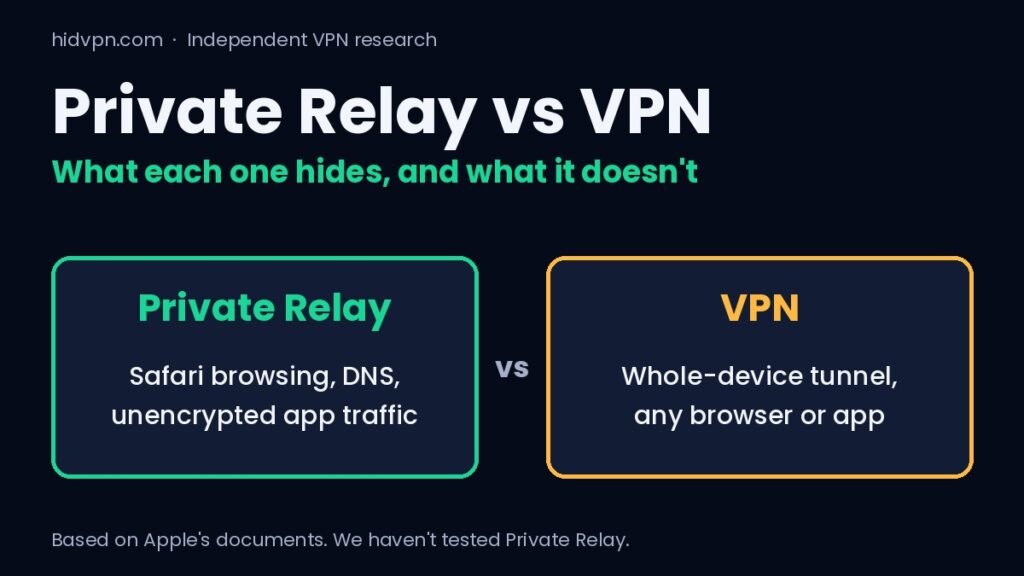
Private Relay and a VPN both stop the website you visit from seeing your home IP address, and that’s where the similarity ends. Private Relay is a feature inside Apple’s ecosystem that works for Safari and a few other kinds of traffic. A VPN is a separate service that carries all of a device’s internet traffic through a server run by the VPN provider.
That difference changes who you have to trust, what stays uncovered, and what you can do with your location. The rest of this guide goes through each of those, then gives you a short check to see which one is protecting a given browser on your phone.
Private Relay and a VPN, side by side
| iCloud Private Relay | A VPN app | |
|---|---|---|
| What it is | A privacy feature that’s part of an iCloud+ subscription | A separate subscription service from a VPN provider |
| What it covers | Safari browsing, DNS lookups, and unencrypted web traffic from apps (Apple’s overview) | Normally all internet traffic from the device, in any browser or app |
| Who runs it | Two relays: the first run by Apple, the second by a partner such as a content delivery network | One provider that runs the server |
| Who can link you to a site | Nobody, by design. Apple says no single party can see both your IP and your sites | The VPN provider can, so its logging practice matters |
| Your location to websites | An address from your own region (city-level or country and time zone, your choice) | The location of whichever server you pick |
| Other browsers | Not described as covered; Apple’s documents name Safari. In our test, the Google app still showed our real IP | Covered by the device-wide tunnel |
| Works on | Apple devices with iCloud+ | Windows, Mac, Android, iOS, Linux, routers |
| Not available everywhere | Yes. Apple says it isn’t available in all countries or regions | Varies by provider and country |
Two relays, two halves of the picture
Apple’s overview describes the design in plain terms. When you open a site in Safari with Private Relay on, your request goes through two relays before it reaches the site. If you want the basics first, our guide on how a VPN works covers the single-tunnel version.
- The first relay is run by Apple. It sees your real IP address and the network you’re connecting from, but the name of the website is encrypted, so it can’t tell where you’re going.
- The second relay is run by a partner company; Apple describes these as large content delivery networks. It decrypts the website name and makes the connection, and it gives you a temporary relay IP address. It never learns your original IP.
Your DNS lookups (the step where a site name is turned into a numeric address) go through the same arrangement, using a method called Oblivious DNS over HTTPS. Our DNS leak guide explains why that step matters for privacy.
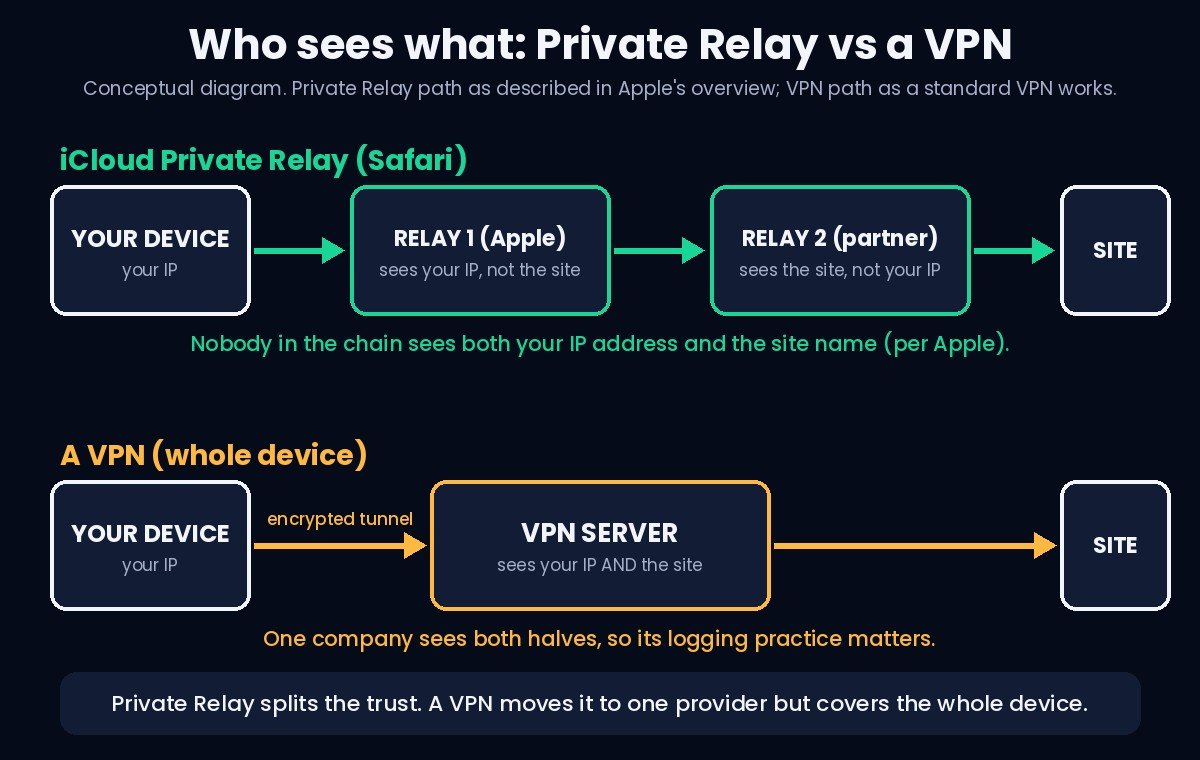
The result is that your internet provider, Apple’s first relay and the second relay each see only part of the story. Apple’s overview says that no single party, including Apple, can see both your IP address and what you browse. That’s the claim to hold Apple to, and it depends on the two companies running the relays staying separate.
With a VPN, one company sees both halves
A VPN is built differently. Your device builds an encrypted tunnel to one server, and everything goes through it. Your internet provider can see that you’re connected to a VPN, but not what’s inside the tunnel. The website sees the VPN server’s IP address instead of yours. Our guide on what your internet provider can see walks through both views.
The VPN provider, however, sits in the middle and can see your real IP and the sites you reach, in the same way your internet provider could without a VPN. You’ve moved the trust, not removed it. That makes the provider’s logging practice the thing to check, and our explainer on what “no-logs” means shows how to read those claims. Independent audits are the stronger evidence, and our pricing comparison notes which of the 17 providers we track have published one.
Which model suits you depends on your worry. If you’re uneasy about one company seeing everything, Private Relay’s split design answers that for the traffic it covers. If you want everything on the device covered, the VPN does that and Private Relay doesn’t.
What Private Relay leaves uncovered
Apple’s overview says Private Relay protects “all web browsing in Safari”, DNS lookups, and unencrypted activity in apps. That list is shorter than it first sounds, for three reasons.
- Other browsers. The documents name Safari and don’t describe Chrome, Firefox or Edge as covered. On our iPhone, the Google app showed our real IP address with Private Relay switched on (see our test below). If you use a browser other than Safari, check it with the three-step test before assuming anything.
- Encrypted app traffic. Most apps already use encrypted connections to their own servers. Apple’s overview covers “unencrypted activity in apps”, which isn’t the same as routing everything an app does through the relays.
- Your device’s other traffic. A VPN’s tunnel is built to carry whatever the device sends. Private Relay is built around browsing.
Networks can also get in the way. Apple’s overview says enterprise network settings generally take priority, and that a network can block Private Relay by refusing to resolve its hostnames, which prompts the device to ask you to turn it off or change networks. On a school or company network, expect it not to work.
One thing Apple’s documentation flags as a trade-off: because sites no longer see your usual IP address, some may ask for extra steps to sign in, and sites that rate-limit or filter by IP address may block the relay address.
What happens when you switch on both
You get the VPN, not Private Relay. Apple’s overview says that when a device is using a VPN, “traffic that goes through the VPN will not use Private Relay”. So running both doesn’t stack two layers. Your traffic goes through the VPN tunnel, and the VPN provider takes over the role of seeing both halves.
On a Mac, Apple’s support page adds that a third-party app such as a VPN or an internet filter can make Private Relay stop working, and a message may say that some of your system settings prevent it from working. Apple’s advice there is to turn off or uninstall the app if you can.
The practical rule: choose one for the moment you need it. When you switch the VPN off, Private Relay goes back to covering Safari.
Does either one change where you appear to be?
This is where people expect Private Relay to behave like a VPN, and Apple’s documents say it doesn’t. The overview describes a setting with two options: “Maintain general location” (roughly your city) or “Use country and time zone” (a broader area). In both cases the relay IP addresses reflect your actual region, and the document states that the service provides no way to spoof your location. Apple built it to keep you in your own region.
A VPN lets you pick a server in another country, so sites see the location of that server. That’s a technical fact about how VPNs work, not a promise about any particular website, and some sites check more than your IP address. Our guide on using a VPN with AI tools from restricted regions goes into one such case.
Travel is another difference. Apple’s support page says Private Relay turns itself off in a country or region where it isn’t available, notifies you, and turns back on when you reach a supported one. At launch in 2021, press reports named China, Belarus, Colombia, Egypt, Kazakhstan, Saudi Arabia, South Africa, Turkmenistan, Uganda and the Philippines as places it wouldn’t be offered, and Apple’s support page doesn’t list countries, so check Apple’s current position before you rely on it abroad.
What we saw on our own iPhone
✓ Tested on our iPhone, Sydney, 22 October 2026
How we tested
- Device: our own iPhone with iCloud+, on home Wi-Fi (Telstra) in Sydney
- Browsers: Safari and the Google app
- VPN: NordVPN’s iPhone app, Sydney server
- Tool: ipleak.net, which shows the IPv4, IPv6 and WebRTC addresses a site can see. Our real addresses are blurred in the screenshots.
We ran the same three steps described in the next section. First with everything off, then with Private Relay on, then with Private Relay still on and NordVPN connected.
| Setup | Safari | Google app |
|---|---|---|
| Nothing on | Our real Telstra address (IPv4 and IPv6) | Not checked at this step |
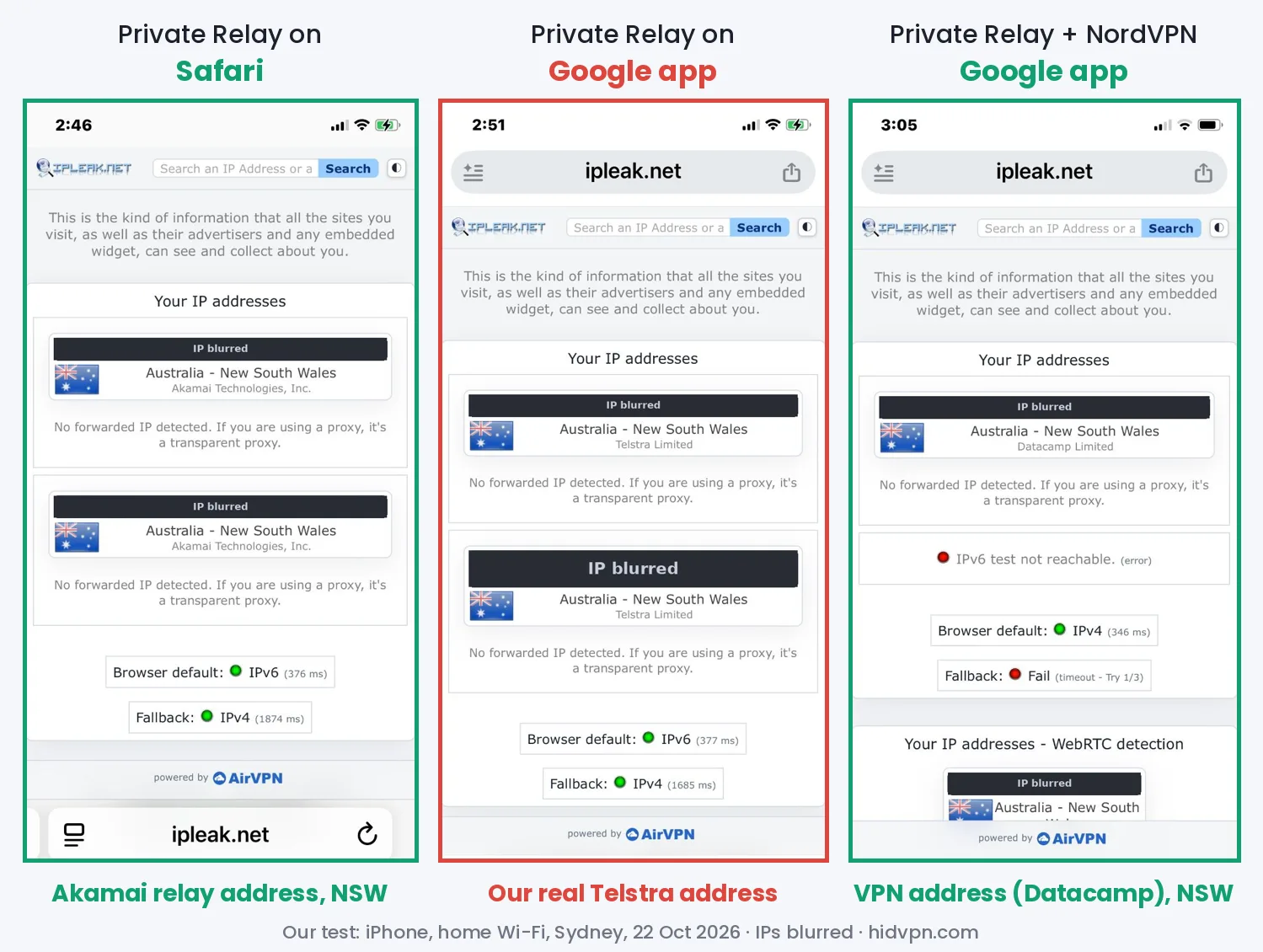
| Private Relay on | A relay address registered to Akamai Technologies, still in New South Wales | Our real Telstra address, the same as with nothing on |
| Private Relay on + NordVPN (Sydney) | NordVPN’s address (Datacamp Limited) | NordVPN’s address (Datacamp Limited) |
Three things stood out.
- Safari was covered, and stayed in our region. With Private Relay on, sites saw an address registered to Akamai, one of the content delivery networks Apple uses for the second relay, and located in New South Wales, where we are. That matches Apple’s description of the design.
- The Google app was not. With Private Relay on, the same page in the Google app showed our real Telstra address on both IPv4 and IPv6. Any site opened there could see it.
- The VPN covered both, and took over in Safari. With NordVPN connected, Safari and the Google app both showed the VPN server’s address. Safari no longer showed Akamai, which fits Apple’s statement that traffic going through a VPN doesn’t use Private Relay. ipleak.net reported that it couldn’t reach us over IPv6, and its WebRTC check showed only the VPN address.
This was one iPhone, one home network and one afternoon. We tried one browser besides Safari, so we can’t say how Chrome, Firefox or Edge behave on your phone. That’s what the check below is for.
A three-step check you can run on your own iPhone
These are the steps we used above. They show, in about five minutes, which tool is covering which browser on your own phone. Use a leak test page such as ipleak.net, which shows your IP address and the DNS servers it sees. Our guide on checking whether your VPN is working shows how to read that page.
- Baseline. Turn Private Relay and any VPN off. Open the leak test in Safari and write down the IP address and the company name shown. That’s your internet provider’s address.
- Private Relay on, VPN off. Turn on Private Relay (Settings, your Apple Account, iCloud, Private Relay) and reload the page in Safari. The IP address should change from step 1. Then open the same page in a second browser you use, such as Chrome. If the second browser still shows the step 1 address, Private Relay isn’t covering it.
- VPN on. Turn Private Relay off or leave it on, connect your VPN, and reload the page in Safari and the other browser. Both should now show the VPN server’s address. If one browser doesn’t, the VPN isn’t covering it and that’s worth fixing.
On a work or school network, or while using a managed device, Private Relay may be switched off by the organisation. A step 2 result that matches step 1 doesn’t always mean you did something wrong.
Safari also has a built-in way to see the address for one page: tap the Page Menu and choose Show IP Address, or on a Mac use View, then Reload and Show IP Address, according to Apple’s support page.
Which one for which situation
- Everyday Safari browsing at home, on an Apple device with iCloud+: Private Relay is a reasonable extra layer, and it’s already in the subscription you pay for. It doesn’t cost more.
- Public Wi-Fi at a cafe or airport: a VPN covers every app on the device, and that covers more ground than Safari alone. See our guide on what can go wrong on public Wi-Fi.
- A phone or laptop with several browsers and apps: a VPN, because Private Relay isn’t described as covering the others.
- You want to appear in another country: a VPN. Private Relay stays in your region by design.
- You don’t want to trust one company with your traffic: Private Relay’s two-party split is built for exactly that, for the traffic it covers.
- You’re not sure you need either: start with whether you need a VPN.
If you’ve decided on a VPN for your iPhone, see our best VPN for iPhone guide and our NordVPN review. Prices for 17 providers are in the VPN pricing comparison.
Turning Private Relay off for one network
If Private Relay breaks something on a particular network, you can switch it off for that network only. Apple’s support page gives these steps.
- iPhone or iPad, Wi-Fi: Settings, Wi-Fi, tap the More Info button next to the network, scroll down and turn off Limit IP Address Tracking.
- iPhone or iPad, cellular: Settings, Cellular, select your primary number and tap Limit IP Address Tracking (on iOS 18 or earlier, tap Cellular Data Options first).
- Mac: Apple menu, System Settings, Network, choose the service such as Wi-Fi, click Details next to your network and turn off Limit IP address tracking.
Apple notes that turning it off for a site or network lets your network provider see which sites you visit in Safari. The setting applies across your devices that have Private Relay on.
Private Relay and VPN questions
Is iCloud Private Relay a VPN?
No. Apple’s own overview describes it as different from a VPN. It covers Safari browsing, DNS lookups and unencrypted app traffic, splits what two relays can see, and doesn’t let you choose a location.
Do I need a VPN if I have iCloud Private Relay?
It depends on what you want covered. Private Relay protects browsing in Safari. A VPN covers the whole device, including other browsers and apps, and lets you choose a server location. For public Wi-Fi or other browsers, a VPN covers more.
Can I use Private Relay and a VPN at the same time?
You can have both enabled, but Apple says traffic that goes through the VPN won’t use Private Relay. On a Mac, a VPN may also trigger a message that settings are preventing Private Relay from working.
Does iCloud Private Relay hide my IP address?
From the sites you visit in Safari, yes. They see a relay IP address from your region in place of your own. In our test, other apps weren’t covered: the Google app still showed our real address. Your internet provider sees you connecting to Apple’s first relay, but Apple says it can’t see the site names.
Does iCloud Private Relay work in Chrome or the Google app?
Apple’s documents describe Safari, not other browsers. On our iPhone, with Private Relay on, the Google app showed our real IP address while Safari showed a relay address. Run the three-step check above to see what your own browser does.
Does iCloud Private Relay slow down my internet?
Apple’s support page says Private Relay uses a single connection, so speed tests that open several connections may show lower results, and that normal browsing stays fast. We haven’t measured it.
Why do some sites not load or ask for extra checks with Private Relay on?
Apple’s support page says sites that use IP filtering, monitoring or rate limiting may block you, and that some sites may need extra steps to sign in without your usual IP address. You can turn Private Relay off for the network or reload the page showing your IP address to test one site.
Is iCloud Private Relay free?
It’s part of an iCloud+ subscription, so it’s included if you pay for iCloud+ and isn’t a separate purchase. Apple’s page doesn’t give a price.
Sources
- HidVPN hands-on check: iPhone with iCloud+, home Wi-Fi (Telstra), Sydney, 22 October 2026; Safari and the Google app; NordVPN iPhone app, Sydney server; ipleak.net.
- Apple Support: About iCloud Private Relay (read 15 October 2026, re-checked 22 October 2026).
- Apple: iCloud Private Relay Overview (December 2021; details may have changed since).
- Apple Support: Manage iCloud Private Relay for specific websites, networks or system settings (read 15 October 2026, re-checked 22 October 2026).
- iMore: Private Relay not available in China and other countries (2021 report on unavailable regions).
See NordVPN’s current plans · See FastestVPN’s current plans. Prices change often, so check the current plan before you buy.