
HidVPN earns a commission if you buy through some of the links on this page. It doesn’t change what we write. Our affiliate disclosure.
Table of Contents
Key Takeaways
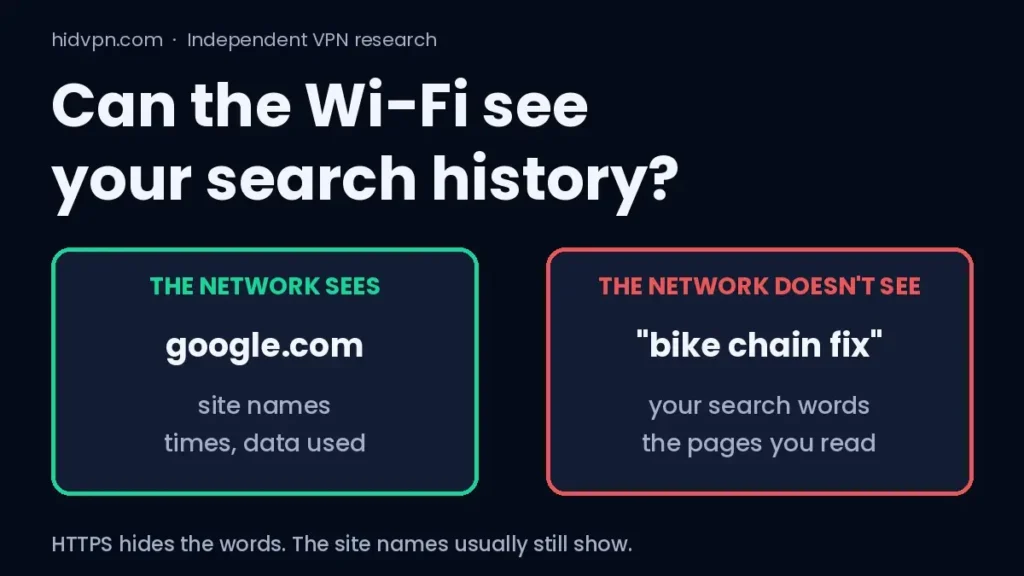
- The home network can usually see which websites a device connects to (for example google.com or youtube.com), not what you searched or read on them. HTTPS encrypts the search words and the page itself. Whether the Wi-Fi owner can actually look that list up depends on the router: many basic routers keep no such log.
- The site names leak in two places: the DNS lookup and the site name sent at the start of an HTTPS connection. Encrypted DNS and Encrypted Client Hello (ECH) can hide those on supported browsers and sites.
- Your actual search history is stored on the device, in the browser and, if you’re signed in, in your Google account. Anyone who can open those can read it, whatever network you used.
- Router apps with parental controls typically show time online and the most-visited sites, not a list of searches.
- Traffic on mobile data, or inside a VPN tunnel, doesn’t appear in a home router’s view. Device-level controls and signed-in accounts still record activity as normal.
What the Wi-Fi can and can’t show
Most people asking this question picture the router keeping a neat list of every search, ready for whoever pays the internet bill. That isn’t how it works. Almost every site you use, Google included, loads over HTTPS. HTTPS encrypts everything after the site’s name: the page, the search box contents, the results. The router passes those encrypted packets along without being able to read them.
What passes through the router in readable form is the name of the site you connected to and when. Whether anyone can look that up later depends on the router: many basic internet-provider routers only list connected devices, while routers with parental-control or traffic features can show sites. That’s still more than many people expect. “youtube.com at 11:40 pm, for 45 minutes” tells a story, even without the video titles. So the honest answer is: the network can’t see the words you type into Google, but it can often see google.com followed by the names of the sites you click on from the results. That second part can give the topic away. A search about a health problem followed by a visit to a forum for that condition says a lot, even without the search words.
This guide is written for households in general: parents wondering what their router shows, house-sharers, and anyone on someone else’s network. It explains what each party can technically see. It is not a guide to getting around house rules.
What actually crosses the router
When you type a search into Google on your phone, three things happen on the network, and each one exposes something different.
- The DNS lookup. Your device asks a DNS server for the address of google.com. On most home networks this question goes to the router or the internet provider in plain text, so the site name is visible. Mozilla says DNS over HTTPS hides those lookups “from anyone on your local network, your ISP, or someone on public Wi-Fi” when it’s switched on.
- The start of the HTTPS connection. Your browser then opens an encrypted connection. Before the encryption starts, it normally sends the website’s name in a field called SNI so the server knows which site you want. The Center for Democracy and Technology describes this as the hostname being sent “in plaintext”, visible to anyone watching the network.
- Everything after that. The search words, the results page, the videos and messages travel inside the encrypted connection. The router sees their size and timing, not their content.
Beginners often think the whole address bar is “the website name”. It isn’t: in an address like google.com/search?q=bike+chain, only google.com is visible to the network. The part after it, including your search words, travels inside the encryption.
So the router’s view is roughly: this phone, google.com, 9:14 pm; youtube.com, 9:16 pm. Not: searched “how to fix a bike chain”.
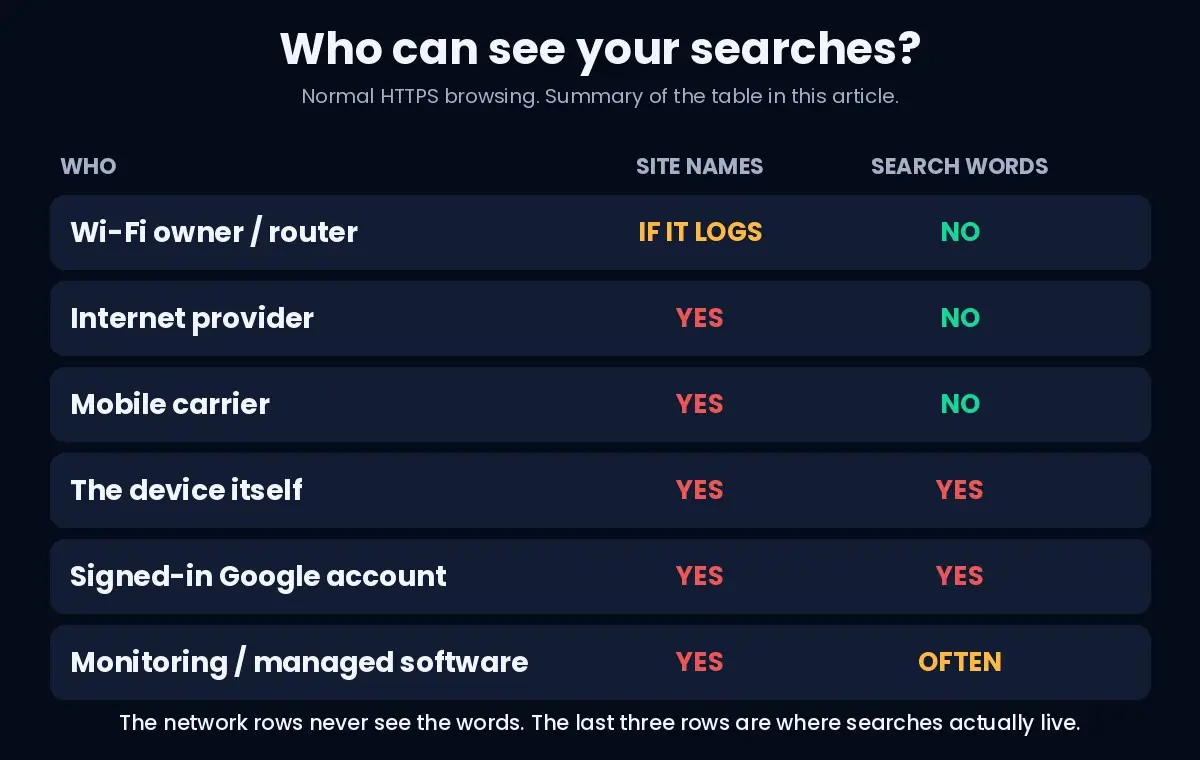
Who sees what: one table
The question “who can see my search history” has a different answer for each party. This is the part most articles skip.
| Who | Site names (google.com) | Search words and pages | Notes |
|---|---|---|---|
| Wi-Fi owner / router | Visible on the network; shown only if the router logs it | No (HTTPS) | Hidden if encrypted DNS + ECH are both working, or on a VPN |
| Internet provider | Usually yes | No (HTTPS) | In Australia, providers aren’t required to keep browsing history (see below) |
| Mobile carrier (on mobile data) | Usually yes | No (HTTPS) | The home Wi-Fi sees nothing while you’re on mobile data |
| The device itself | Yes | Yes | Browser history, unless private browsing; anyone who can unlock the device |
| Your Google account | Yes | Yes | If Search history is on and you’re signed in; viewable at myactivity.google.com |
| Monitoring or school/work-managed software on the device | Yes | Often yes | Works on the device, so the network doesn’t matter (see what an employer or school can see) |
The last three rows are where searches are actually readable, and none of them depend on the Wi-Fi.
Where your search history really lives
Google’s help page is clear about this. When you’re signed in and Search history is on, “Google saves search activity” to your account, where it can be seen and deleted at myactivity.google.com. When you’re signed out, your history “can be saved to your computer”. In Incognito mode, Google says “your search history isn’t saved to your Google Account”, and the browser itself doesn’t keep the history once the window is closed. One exception catches people out: if you sign in to Google inside the Incognito window, searches are saved to that account again.
That has a practical consequence for families. If a shared tablet is signed in to a parent’s Google account, every search on it lands in that account’s history, on any network. If a teenager’s phone is signed in to their own account, the searches go there instead. The Wi-Fi plays no part in either case.
Private browsing changes what the device remembers, not what the network sees. We tested that in our guide to what incognito mode actually hides.
What router apps and parental controls show
Many modern routers and mesh systems come with an app that offers parental controls and some kind of “insights” screen. They work from the same network view described above, so they see site names, not searches.
What they show varies a lot. At the basic end, TP-Link’s HomeShield “Insight” screen showed daily time online plus the top five most-visited and most-blocked sites per profile, and a TP-Link moderator said in 2022 that it doesn’t list every website visited. At the other end, some routers and DNS-based filtering services keep a full, timestamped list of every site name a device looks up. Either way it’s site names, not searches, and the only reliable way to know what yours shows is to open its app.
What these tools are good at is blocking categories of sites and setting time limits. Device tools such as Apple Screen Time and Google Family Link work differently: they run on the phone or tablet itself, so they keep working on any network, including mobile data.
What the internet provider keeps (Australia)
Since 2015, Australian telcos and internet providers must keep certain “metadata” for at least two years: account details, IP addresses, connection times and data used. The law explicitly leaves out web browsing history, so providers are not required to log the sites you visit. WhistleOut’s summary puts it plainly: “neither will your web browsing history” be stored under the scheme.
That doesn’t mean a provider can’t see site names in DNS lookups and SNI as traffic passes through. It means they aren’t required to keep them under that law. Our guide to what your ISP can see goes through the provider’s view in more detail. Other countries have different rules, so if you’re outside Australia, check yours.
Encrypted DNS, ECH and VPNs: what each one changes
Four newer technologies change what a local network can see, and each one affects router logs and parental controls differently.
- Encrypted DNS. Hides the lookup step. Several systems switch it on by themselves when they can: Chrome (since version 83, May 2020) upgrades to DNS over HTTPS if your current DNS provider supports it, and Android upgrades to DNS over TLS if the network’s DNS server supports it. On many home networks the router answers DNS itself, so the automatic upgrade often doesn’t happen. Firefox turns DNS over HTTPS on by default in the US and Canada, and Mozilla says it switches it off when it detects parental-control DNS, so a household filter keeps working.
- Encrypted Client Hello (ECH). Hides the specific site name at the start of the HTTPS connection. Chrome and Firefox added support in late 2023, and Cloudflare began rolling it out across the sites on its network around the same time. It depends on encrypted DNS (Mozilla calls DNS over HTTPS “essential” for it) and on support from both the browser and the website, so many connections still send the site name in the clear. Even when it works, the network sees a generic name, such as cloudflare-ech.com for Cloudflare-hosted sites, and the server’s IP address. On shared hosting that reveals only the hosting company, but large platforms with their own address ranges can still be recognised.
- iCloud Private Relay. Part of Apple’s paid iCloud+, it hides site names and your IP address from the local network for Safari traffic, but it isn’t a full VPN. We compared the two in iCloud Private Relay vs a VPN.
- A VPN. Wraps everything, DNS included, in one encrypted tunnel to the VPN server. The Wi-Fi and the provider see one connection to the VPN and nothing about the sites inside it. The VPN company can see the site names instead (unless they’re hidden by ECH and encrypted DNS run by someone else), which is why its no-logs record matters. We checked this in our own VPN leak tests.
With encrypted DNS or ECH alone, the network can still see the IP addresses of the websites a device talks to; with a VPN or Private Relay it sees only the relay’s address. None of these touches the device history or your Google account. Those stay exactly as they are.
Questions people ask
Can my parents see what I search if I clear my history?
Clearing the browser history removes it from the device. It doesn’t remove searches saved to a Google account; those are deleted separately at myactivity.google.com. Neither one changes what the router saw at the time, which is site names, not searches.
Can the Wi-Fi owner see my searches on incognito?
Incognito doesn’t change the network view. The router sees the same site names as in a normal window, and the searches stay encrypted either way.
Can parents see search history on mobile data?
Not through the home Wi-Fi, because the traffic never crosses it. The mobile carrier sees site names, the same way the home provider would. Anything on the device or in a signed-in account is still there.
Does the Wi-Fi bill show the websites I visit?
No. Internet bills show plan charges and, sometimes, data used. They don’t list websites.
Is private browsing 100% private?
No. It stops the device keeping a history, but the network, the sites you visit and any account you’re signed in to still see what they normally see.
Can someone see my history through the router later?
Only what the router or its app chose to log at the time, typically site names or top sites. Routers don’t store search terms because they never see them.
Sources
- Center for Democracy and Technology, “Encrypted Client Hello: Closing the SNI Metadata Gap”, 20 October 2025.
- Mozilla Support, “Firefox DNS-over-HTTPS”.
- Mozilla, “Say (an encrypted) hello to a more private internet”.
- Cloudflare Docs, “Encrypted ClientHello (ECH)”.
- Google Search Help, “Find & erase your Google Search history”.
- WhistleOut, “Mandatory data retention: what you need to know”.
- ISPreview, “Google Chrome joins Firefox soft-defaults to DNS over HTTPS”, 20 May 2020.
- Android Developers Blog, “DNS over TLS support in Android P”, April 2018.
- TP-Link Community, “HomeShield Pro – View all websites visited”, July 2022.
One check worth doing
If you share a device or a Google account at home, open myactivity.google.com once and look at what’s there. That page, not the router, is the search history most people are actually worried about. Our guide to whether you need a VPN at all covers the network side.