
HidVPN earns a commission if you buy through some of the links on this page. It doesn’t change what we write. Our affiliate disclosure.
Table of Contents
- The short answer
- How split tunneling works
- The two modes: exclude or include
- When split tunneling makes sense
- When to leave it off
- Where to find it in a real app (NordVPN on Windows)
- How NordVPN, PureVPN and FastestVPN handle it
- Split tunneling and the kill switch
- How to check it’s doing what you think
- When split tunneling goes wrong: two real cases
- FAQ
- The bottom line
Key Takeaways
- Split tunneling lets you choose which apps use the VPN and which use your normal internet connection, at the same time.
- Use “exclude” mode (everything through the VPN except the apps you list). “Include” mode leaves every app you forget unprotected.
- Good reasons to use it: reaching your printer or other home devices, a banking app that refuses VPN addresses, or a game or video call that needs the lowest delay.
- Excluded apps are not protected at all. Never exclude your browser on public Wi-Fi.
- Check it on your own device, not only with a website: compare two apps side by side and look at your routing table.
The short answer
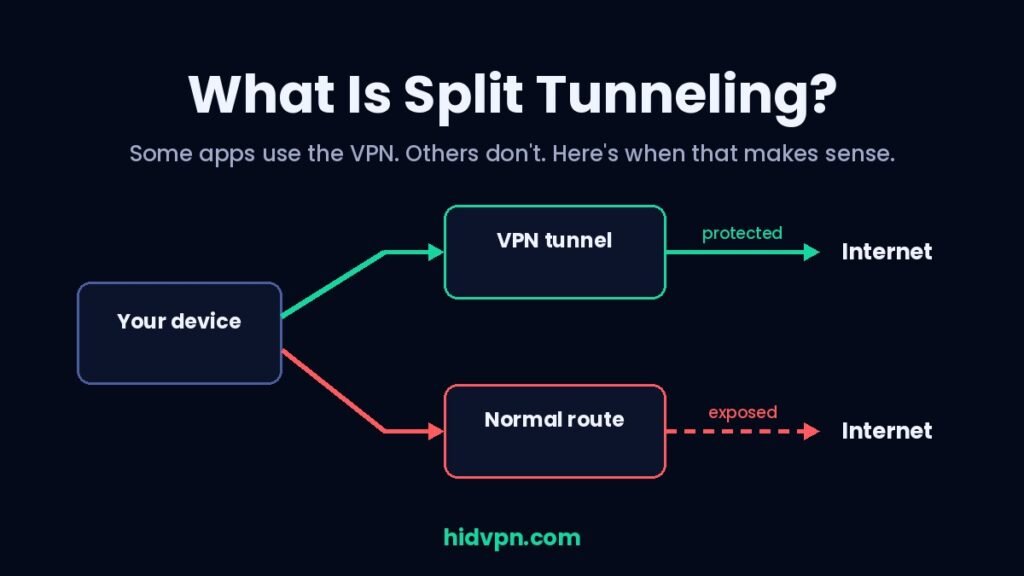
Split tunneling is a VPN setting that splits your internet traffic into two routes. Some apps go through the encrypted VPN tunnel. The rest use your normal connection, as if the VPN were off.
It’s useful when one or two apps don’t work well behind a VPN, but you still want everything else protected. The catch is simple: anything on the normal route gets no VPN protection at all, so the choice of which apps go where matters.
How split tunneling works
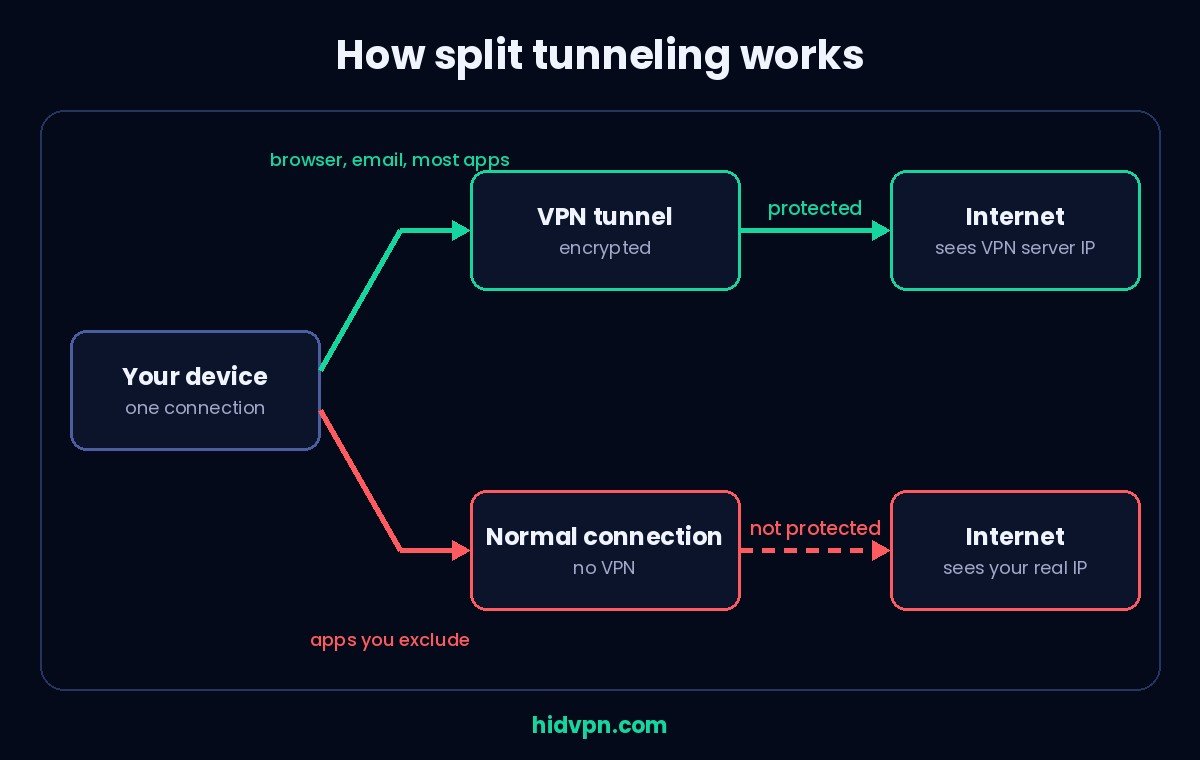
Normally a VPN is all or nothing. Once it’s connected, every app on your device sends its traffic through an encrypted tunnel to the VPN server, and websites see the server’s IP address (the number that identifies a connection online) instead of yours.
With split tunneling on, the VPN app adds rules to your device’s routing (the list your computer uses to decide which network each piece of traffic leaves through). Traffic from the apps you’ve chosen follows one rule, everything else follows the other:
- Tunneled traffic is encrypted and leaves through the VPN server. Your internet provider sees only that you’re connected to a VPN.
- Excluded traffic leaves through your normal connection, unencrypted by the VPN, with your real IP address. Your internet provider and the Wi-Fi network you’re on can see where it goes, exactly as if you had no VPN. Our guide to what your internet provider can see explains what that includes.
Watch: split tunneling in 18 seconds, which apps use the tunnel and which don’t (HidVPN Short)
Both routes run at the same time. You don’t switch between them, and you don’t disconnect the VPN.
The two modes: exclude or include
Most VPN apps offer split tunneling in one or both of these modes. They sound similar, but they fail in opposite directions.
| Mode | What goes through the VPN | What happens with an app you forget | Our view |
|---|---|---|---|
| Exclude (“everything except these apps”) | All apps, apart from the ones on your list | It’s protected. New apps you install later are protected too | The safer default. Use this one |
| Include (“only these apps”) | Only the apps on your list | It’s unprotected. So is every new app you install | Only if you have a narrow, specific reason |
Providers use different names for the same thing. PureVPN, for example, calls exclude mode “inverse split tunneling” and include mode “app-based split tunneling” on its feature page. Read the setting’s description, not only its name, before you add apps.
Watch out: in include mode, the safety of your connection depends on a list you have to remember to update. If you install a new messaging app next month and forget to add it, it runs outside the VPN from day one, and nothing warns you.
When split tunneling makes sense
Split tunneling solves specific problems. If none of these apply to you, you probably don’t need it.
- Home devices you can’t reach. With a VPN on, some laptops can’t see the printer, network storage drive or smart speaker on the same Wi-Fi, because local traffic is being sent out through the tunnel. Excluding the printer app (or allowing local network access, if your VPN has that option) fixes it.
- Apps that refuse VPN addresses. Some banking apps, payment services and account logins block connections from known VPN servers, or ask for extra verification every time. Excluding that one app lets it work while the rest of your device stays protected.
- Games and video calls where delay matters. Sending traffic via a VPN server adds distance, which can add delay (ping). Excluding a game or a video-calling app can make it more responsive. Our VPN for gaming guide covers when a VPN helps and when it gets in the way.
- Saving mobile data or speed. Encryption adds a little overhead. On a limited phone plan, some people exclude large background downloads, such as system updates from the operating system’s official store.
- Local search results. Search engines and map apps use your IP address to guess your location. Excluding a maps app keeps results local while your browser stays on the VPN.
When to leave it off
- On public Wi-Fi. In a café, hotel or airport, every excluded app is exposed to whoever runs or watches that network. Use full tunneling there. Our guide to public Wi-Fi risks explains why.
- Never exclude your browser if privacy is the reason you use a VPN. Most of what you’d want to keep private happens there.
- When you’re not sure which app is causing a problem. Excluding apps at random weakens your protection without fixing anything. Try the fixes in our VPN troubleshooting guide first.
- If you need everything covered by the kill switch. Excluded apps sit outside the VPN, so a kill switch can’t protect them the same way (more on that below).
Split tunneling also doesn’t change what a VPN can do for your privacy in general. It only decides which apps get that protection. For the bigger picture, see what a VPN does and doesn’t protect.
Where to find it in a real app (NordVPN on Windows)
We recorded the NordVPN Windows app (version 8.10.3.0) while writing our NordVPN tests. Split tunneling sits in the Settings sidebar, directly under Kill Switch:
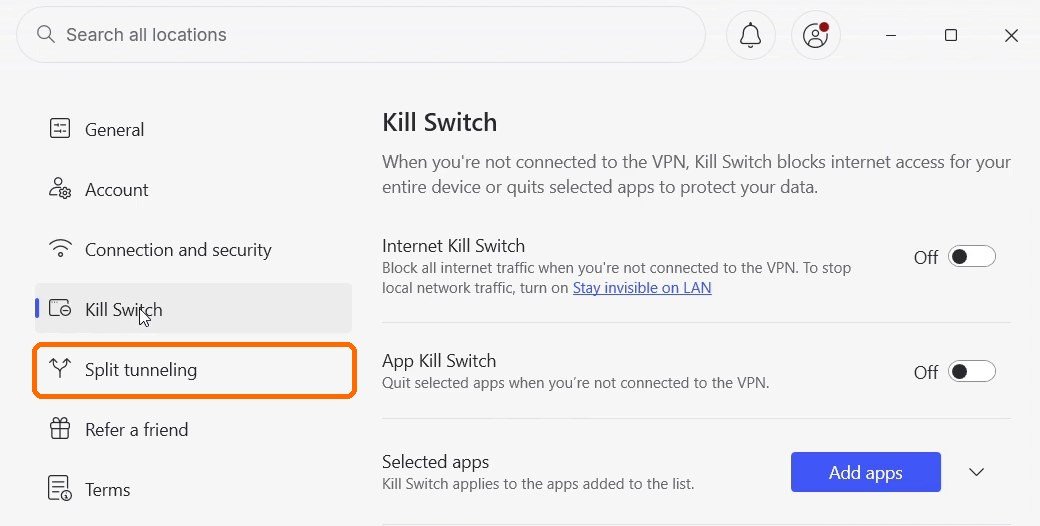
According to NordVPN’s support documentation, the Windows steps are:
- Open Settings (under the profile icon at the top right).
- Choose Split tunneling in the sidebar and turn it on.
- Click Add apps. The list shows only apps that are currently open, so start the app first, or use Browse apps to find it.
On Android the setting is under Settings, then VPN connection, then Split tunneling, where you pick the apps to exclude. The Linux app works differently: instead of choosing apps, NordVPN’s “Allowlist” lets you exclude ports or subnets (ranges of network addresses), and its documentation warns that allowlisted traffic is not blocked by the kill switch.
How NordVPN, PureVPN and FastestVPN handle it
This is what each provider says about its own split tunneling, checked on 29 September 2026. Apart from the NordVPN Windows screen above, we haven’t tested these settings ourselves.
| Provider | Modes | Platforms (provider’s documentation) | Worth knowing |
|---|---|---|---|
| NordVPN | Exclude apps (Windows, Android); Allowlist of ports and subnets on Linux | Windows, Android, Android TV; Allowlist on Linux | The Internet Kill Switch overrides split tunneling. NordVPN also notes that excluded apps can still use its DNS servers, which can confuse some apps |
| PureVPN | Both: include (“app-based”) and exclude (“inverse”) | Windows, Android, Fire TV Stick, Android TV | Found under Settings, Advanced, Split Tunneling |
| FastestVPN | Check the provider’s current feature list | Check the provider’s current apps page | Our FastestVPN review covers its kill switch; we couldn’t confirm its split tunneling options from our own recording |
If split tunneling is the reason you’re choosing a VPN, check the provider’s help pages for your exact device before you buy. iPhones are a common gap: many providers don’t offer app-level split tunneling on iOS at all. For a side-by-side of two of these, see PureVPN vs NordVPN.
Split tunneling and the kill switch
A VPN kill switch blocks your internet if the VPN drops. Split tunneling sends some apps outside the VPN on purpose. The two features pull in opposite directions, so providers have to decide which one wins.
NordVPN’s support documentation says its Internet Kill Switch takes priority: if it’s on and the VPN disconnects, even the apps you’ve excluded lose internet access. That’s the safer choice, but people sometimes report it as split tunneling “not working”. NordVPN suggests relying on auto-reconnect instead of the kill switch if you depend on split tunneling.
Other apps can behave differently, so if you use both features, test what happens to an excluded app when you disconnect the VPN by hand.
How to check it’s doing what you think
Don’t trust the toggle alone. It takes about five minutes to confirm which route each app is really using, and you should start on your own device before you use any website.
1. Compare two apps side by side. Pick one app you’ve excluded and one that should be tunneled, for example two different browsers. With the VPN on, open an IP check page in each (such as our IP leak test). The tunneled one should show the VPN server’s address, for example 203.0.113.25. The excluded one should show your own connection, for example 198.51.100.40. If both show the VPN address, the exclusion isn’t working. If both show your own address, the VPN isn’t protecting anything.
2. Look at your routing table. This shows the rules your device is following, not what a website thinks.
- Windows: open Command Prompt and type
route print. With the VPN on, you should see routes that point at the VPN’s adapter. - macOS: open Terminal and type
netstat -rn. - Linux: type
ip route, andip -6 routefor IPv6.
Run it once with the VPN off and once with it on, and compare. App-based split tunneling usually works inside the VPN app’s own network filter, so you won’t see one line per app, but you will see whether the VPN routes are there at all.
3. Check DNS for the tunneled apps. DNS is the lookup that turns a website name into an address. If it leaks, your internet provider can see which sites you visit even though the traffic itself is encrypted. Run a DNS leak test in a tunneled app and make sure it shows the VPN provider’s DNS servers, not your internet provider’s.
Repeat the check after big updates. VPN app updates and operating system updates can reset settings or change how routing works. It’s the same advice we give for the kill switch.
When split tunneling goes wrong: two real cases
ExpressVPN, Windows, 2022–2024: DNS requests outside the tunnel (limited security leak). A CNET reviewer noticed that with split tunneling set to “Only allow selected apps to use the VPN”, some DNS requests went to his internet provider instead of ExpressVPN’s servers. ExpressVPN said in a blog post on 8 February 2024 that the bug affected fewer than 1% of Windows users and that traffic contents stayed encrypted, but that the internet provider could see domain names such as google.com. It switched split tunneling off in the Windows app while it fixed the problem, restored it in an update in April 2024, and had the security firm Nettitude audit the fix. Note the mode: this was include mode.
NordVPN: excluded apps using the VPN’s DNS (known compatibility issue, not a leak). NordVPN’s own support page says that an excluded app may show your internet provider’s IP address while the computer still uses NordVPN’s DNS servers. Some apps see the mismatch and fail to connect or misjudge your location. It’s the opposite of a leak (more is protected, not less), but it explains why an excluded app can still misbehave.
The pattern in both cases: split tunneling is more complicated than an all-or-nothing tunnel, and DNS is where it tends to get messy. That’s the reason for step 3 above.
FAQ
Is split tunneling safe?
It’s safe for the traffic that stays in the tunnel. The traffic you exclude has no VPN protection at all, so it’s only as safe as your normal connection. Use exclude mode, keep your browser in the tunnel, and turn it off on public Wi-Fi.
Does split tunneling make my VPN faster?
It can make the excluded apps faster, because their traffic takes the direct route. It doesn’t make the tunneled apps faster, though it can free up a little bandwidth if a large download is excluded.
Can my internet provider see excluded apps?
Yes. Excluded traffic uses your normal connection, so your internet provider can see where it goes, just as it could without a VPN.
What is the difference between split tunneling and full tunneling?
Full tunneling sends all of your device’s traffic through the VPN. Split tunneling sends only part of it, and the rest goes over your normal connection.
Why is split tunneling not working in my VPN?
Three common reasons: the kill switch is overriding it (NordVPN does this by design), the app wasn’t running when you added it, or the app is getting its connection through a different process, such as a browser helper or background service. Check the provider’s help page for your platform.
Does split tunneling work on iPhone?
Often not. iOS limits how VPN apps can route individual apps, and many providers don’t offer app-level split tunneling there. Check your provider’s iOS documentation.
The bottom line
Split tunneling is a tool for specific problems, not a setting to switch on by default. If one app breaks behind your VPN, whether that’s a printer, a bank or a game, exclude that one app and keep everything else in the tunnel. Use exclude mode, never exclude your browser on public Wi-Fi, and check the result on your own device.
If you’re choosing a provider with split tunneling, NordVPN and PureVPN both document it on Windows and Android. See NordVPN’s current plans · See PureVPN’s current plans · See FastestVPN’s current plans. Prices change often, so check the current plan before you buy.