
HidVPN earns a commission if you buy through some of the links on this page. It doesn’t change what we write. Our affiliate disclosure.
Table of Contents
- The fastest way: the VPN app
- The switch in Settings
- Why the VPN keeps coming back on
- Removing a VPN completely
- When you can’t turn it off: work and school iPhones
- Good reasons to switch it off for a moment
- When to leave it on
- How to check it’s really off (or on)
- Questions about VPNs on iPhone
- Sources
Key Takeaways
- The quickest way to turn off a VPN on iPhone is the Disconnect button in the VPN app itself.
- If you can’t find the app, open Settings and switch off the VPN row near the top, or go to Settings, General, VPN & Device Management, VPN.
- If the VPN turns itself back on, the cause is usually the app’s auto-connect setting or Connect On Demand on the VPN profile. Switching the VPN off once doesn’t change either.
- To remove a VPN completely, delete its profile in VPN & Device Management, or delete the app.
- A VPN set up by your employer or school may not let you turn it off. That’s deliberate, and the fix is a conversation with IT, not a setting.
Turning off a VPN on an iPhone takes about two taps. Keeping it off is where people get stuck: the icon reappears a minute later, or the switch in Settings won’t stay put. That almost always comes down to one of two automatic settings, and once you know where they live, the VPN does what you tell it.
This guide covers all three ways to switch a VPN off, the two settings that switch it back on, how to remove a VPN entirely, and the honest list of moments when you should and shouldn’t turn it off. We checked these steps with NordVPN on our own iPhone in Sydney in October 2026, and the checks at the end are the ones we use.
The fastest way: the VPN app
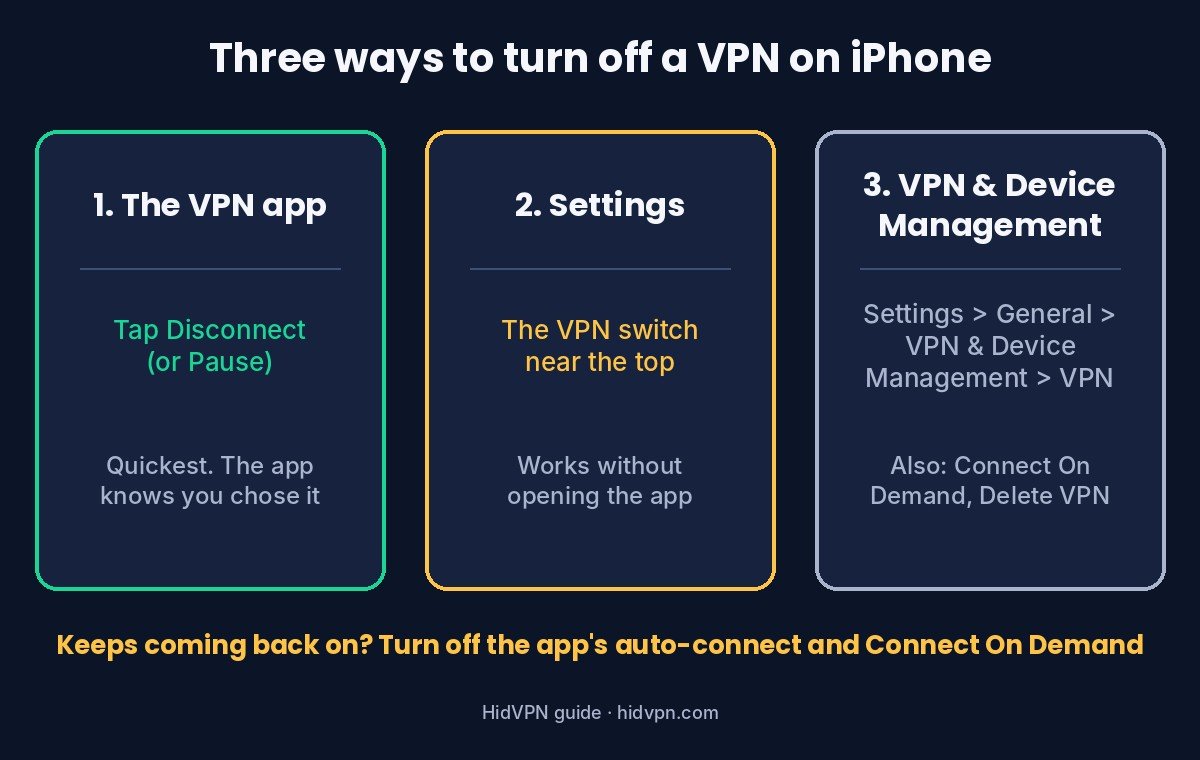
Open the VPN app you use and tap Disconnect (or its power button). That’s it. The VPN badge disappears from the status bar (on iPhones with Face ID, swipe down from the top-right corner to see the badge in Control Center) and your traffic goes back over your normal Wi-Fi or mobile connection.
Using the app is better than the Settings switch for one reason: the app knows you chose to disconnect. Some apps treat a Settings toggle as a dropped connection and try to reconnect. Disconnecting inside the app avoids that tug of war.
A few apps also offer a pause timer (5 minutes, 30 minutes, an hour) instead of a full disconnect. If you’re only switching off to get past one website or log in to hotel Wi-Fi, a pause is the safer choice: the VPN comes back by itself and you don’t have to remember.
The switch in Settings
Every VPN on an iPhone is installed as a VPN configuration (often called a profile). iOS gives you two places to control it without opening the app:
- The VPN row near the top of Settings. Once a VPN configuration is installed, Settings shows a VPN row with a switch, usually just under Wi-Fi, Bluetooth and Mobile Service (Cellular on US iPhones). Turn it off.
- Settings, General, VPN & Device Management, VPN. This lists every VPN configuration on the phone. The status line at the top shows Connected or Not Connected, and you can switch it off here too. Tap the blue (i) next to a configuration to see its settings, including Connect On Demand.
If you have more than one VPN app installed, this list is where you pick which one is active. Only one VPN configuration can be connected at a time on an iPhone.
Why the VPN keeps coming back on
This is the question behind most “how do I turn off my VPN” searches. Two settings can reconnect a VPN without you touching anything:
| Setting | Where it lives | What it does | How to stop it |
|---|---|---|---|
| Auto-connect in the VPN app | Inside the app’s settings (NordVPN: profile icon, Settings, Auto-connect) | Connects automatically, for example on every network or only on Wi-Fi | Turn auto-connect off, or add your home Wi-Fi as a trusted network so it skips that one |
| Connect On Demand | Settings, General, VPN & Device Management, VPN, then the (i) next to the VPN | iOS reconnects the VPN by itself when the profile’s rules say so | Switch Connect On Demand off on that profile first, then turn the VPN off. If the switch is greyed out, see the work and school section |
NordVPN’s iPhone app, for example, offers auto-connect “Always” or “On Wi-Fi networks”, and lets you add trusted networks where it won’t connect. Other apps use different words (Auto-connect, Connect on launch, Always-on), but the setting lives in the app.
Connect On Demand is an iOS feature, not an app feature, which is why turning the app’s auto-connect off doesn’t always solve it. Apple’s own documentation describes the On Demand rules as starting a connection based on things like the network you join. If the switch is greyed out, the profile was installed by an organisation that locked it (see the work and school section below).
One more cause worth ruling out: the app’s kill switch, if it has one. It doesn’t reconnect the VPN, but if you switch the VPN off in Settings while the app is still trying to reconnect, your internet can stop working, which looks like the phone fighting you. Disconnecting inside the app avoids it.
Removing a VPN completely
If you’ve stopped using a VPN, switching it off isn’t enough: the profile stays, and auto-connect or On Demand can bring it back. Remove it properly:
- Go to Settings, General, VPN & Device Management, VPN.
- Tap the (i) next to the VPN you no longer use.
- Tap Delete VPN and confirm.
- Delete the VPN app itself from the Home Screen if you won’t use it again. Deleting the app usually removes its configuration as well; check the VPN list afterwards to be sure.
Deleting the app doesn’t cancel a subscription bought through the App Store. That’s managed in Settings, [your name], Subscriptions, separately from the app.
When you can’t turn it off: work and school iPhones
If your iPhone is managed by an employer or school, the VPN may have been installed through device management. In that case you may see the VPN listed under a profile you didn’t install, a greyed-out Connect On Demand switch, or a VPN that reconnects no matter what you do. Apple lets organisations prevent users from toggling Connect On Demand.
That’s not a fault to work around. The organisation set it so traffic to its systems is always protected. If it’s getting in the way, ask IT: they can tell you whether it’s meant to be always on and whether there’s an exception for what you need. Our guide on what employers and schools can see on their networks covers the other side of this.
Good reasons to switch it off for a moment
- Logging in to hotel, airport or café Wi-Fi. The sign-in page (captive portal) sometimes won’t load through a VPN. Connect, sign in, then turn the VPN back on before you browse.
- An app or site blocks VPN addresses. Some banking, payment and shopping services flag VPN traffic. Turning the VPN off for that one task is reasonable on a network you trust, such as your home Wi-Fi or mobile data.
- Reaching devices on your own network. Printers, smart TVs and casting devices may not show up while the VPN is on. Our split tunneling guide explains the longer-term fix where apps support it.
- Speed troubleshooting. To tell whether the VPN or your connection is slow, test both ways. Our VPN speed tests show how to do it, and how often the line itself is the problem.
- Location-based results. If a site keeps showing the wrong city, the VPN server’s location is usually why. Our VPN and location guide explains what it changes and what it doesn’t.
When to leave it on
- On public Wi-Fi you don’t control, once you’re past the sign-in page. That’s the situation a VPN was built for. Our guide to what can actually go wrong on public Wi-Fi sets out the real risks.
- When you don’t want your internet provider or the network owner to see which sites you visit. With the VPN off, they can usually see the site names, though not the pages themselves on HTTPS sites. Our guide on what your ISP can see has the details.
- When an organisation requires it, as above.
How to check it’s really off (or on)
The VPN icon in the status bar is a good first sign, but it’s worth a ten-second check after changing anything:
- Open our IP leak test or ipleak.net in Safari.
- With the VPN off, the provider name should be your own internet or mobile provider.
- With the VPN on, it should be a hosting company and the location should match the VPN server.
When we tested NordVPN on our iPhone in Sydney on 22 October 2026, ipleak.net showed our home provider, Telstra, with the VPN off, and a hosting company, Datacamp Limited, in New South Wales with NordVPN connected. The IPv6 test also stopped showing our real IPv6 address. That’s what a working connection looks like. Our four quick checks go further, and our Private Relay vs VPN test shows why Apple’s Private Relay switch in iCloud settings is a different thing from a VPN.
Questions about VPNs on iPhone
How do I get rid of the VPN icon on my iPhone?
The icon shows while a VPN is connected. Disconnect in the VPN app or switch off the VPN row in Settings and it goes away. If it comes back, turn off the app’s auto-connect and check Connect On Demand. If it’s stuck on Connecting, or you see a VPN you don’t recognise (some ad blockers and DNS apps use the VPN slot), switch Airplane Mode on and off, restart the iPhone, and check the list in VPN & Device Management.
Why does my iPhone VPN turn on by itself?
Usually because the VPN app’s auto-connect is set to connect on every network or on Wi-Fi, or because Connect On Demand is on for that VPN profile. Switching the VPN off once doesn’t change either setting.
Is it safe to turn off my VPN?
On a network you trust, such as your home Wi-Fi or mobile data, yes for most people. On public Wi-Fi, keep it on except to sign in to the network’s login page.
Does turning off the VPN delete it?
No. The configuration stays on the phone until you delete it in VPN & Device Management or delete the app.
I deleted the app. Why is the VPN still listed?
Occasionally a configuration outlives its app. Go to Settings, General, VPN & Device Management, VPN, tap the (i) and choose Delete VPN.
Is iCloud Private Relay a VPN I need to turn off too?
It’s a separate Apple feature in your iCloud settings, not a VPN. It covers Safari, DNS lookups and unencrypted app traffic, and it doesn’t appear in the VPN list. To pause it, go to Settings, [your name], iCloud, Private Relay. Our Private Relay comparison explains how the two interact.
Sources
- Apple Platform Deployment: VPN plugin declarative configuration for Apple devices (VPN On Demand rules; organisations can prevent users toggling Connect On Demand; read 29 October 2026).
- NordVPN Help Center: How to set up auto-connect on the NordVPN app (“Always” and “On Wi-Fi networks” options, trusted networks; read 29 October 2026).
- HidVPN hands-on iPhone test, 22 October 2026, Sydney, Telstra home connection: ipleak.net with the VPN off and with NordVPN connected.
See NordVPN’s current plans. Prices change often, so check the current plan before you buy.