
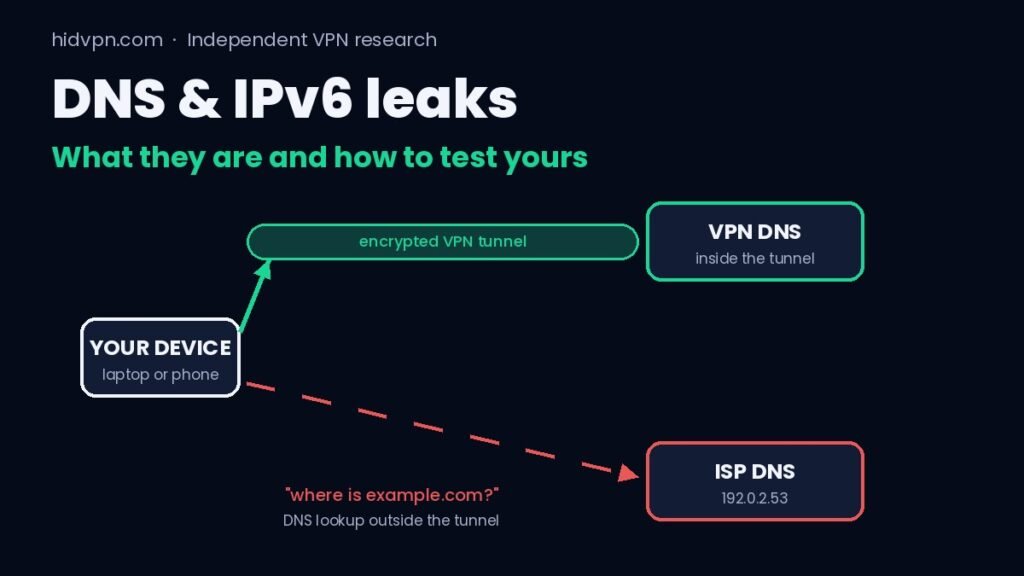
HidVPN earns a commission if you buy through some of the links on this page. It doesn’t change what we write. Our affiliate disclosure.
Table of Contents
Key Takeaways
- A DNS leak happens when your device asks your internet provider’s DNS server for a site’s address while the rest of your traffic goes through the VPN. The provider can then see which sites you look up.
- An IPv6 leak happens when your VPN only covers IPv4 traffic and your device sends some traffic over IPv6 outside the tunnel, often with your real address attached.
- Check the device first (which DNS servers it uses and whether it has an IPv6 route outside the VPN), then confirm with a web test such as our IP and DNS leak test.
- Most fixes are settings you already have: the VPN app’s own DNS, its leak protection, the kill switch, and on Android the “Block connections without VPN” option.
- A leak is a security problem, not a reliability bug. A VPN that drops is annoying; a VPN that leaks while it says “connected” exposes what it was meant to cover.
The short answer
A DNS leak means the “phone book” lookups your device makes, turning a name like example.com into an address, go to your internet provider instead of through the VPN. Your traffic is encrypted, but the list of sites you visit isn’t. An IPv6 leak is similar: part of your connection skips the tunnel because the VPN only handles the older IPv4 addresses.
To find out if you’re affected, connect your VPN, check which DNS servers your device is using, and then run a leak test. If you see your internet provider’s name anywhere in the results, you have a leak. The fix is usually one setting in your VPN app.
What DNS is, in one minute
Watch: how a DNS leak happens, in 21 seconds (HidVPN Short)
Every site lives at a numeric address. DNS (the Domain Name System) is the service that turns the name you type into that address. Each time you open a site or an app checks in with its server, your device sends a small DNS question, such as “where is example.com?”, to a DNS server and waits for the answer.
By default, that server belongs to whoever gave you your connection: your home internet provider, the hotel, or the café. That means the DNS server sees the name of every site and service you use, with a time stamp. Our guide to what your internet provider can see explains how much that reveals even when the sites themselves use HTTPS.
A VPN is supposed to change this. When it’s working, your DNS questions travel inside the encrypted tunnel to a DNS server run by the VPN provider, so your internet provider only sees encrypted traffic going to one VPN server.
What a DNS leak is
A DNS leak is when those DNS questions go the old way, straight to your internet provider’s DNS server, while everything else goes through the VPN. The VPN app still says “connected”, your public IP address still shows the VPN server, and nothing looks wrong. But your provider is still receiving a list of every site name you look up.
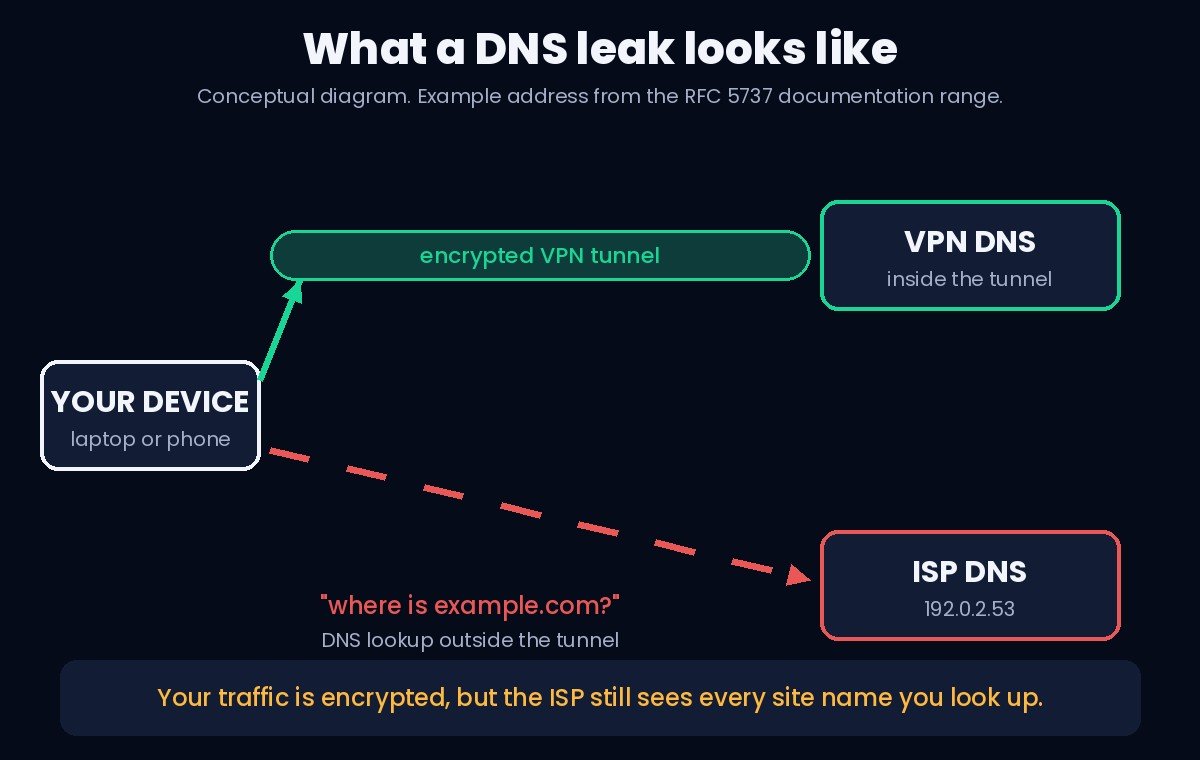
An example: with the VPN on, your device should send its DNS questions to the VPN’s DNS server inside the tunnel. In a leak, the same question goes to your provider’s server at, say, 192.0.2.53, outside the tunnel. Your provider can’t read the pages you load, but it knows you looked up your bank, a health site and a job board at 9:14 on a Tuesday.
Why this matters: for many people, the list of sites they visit is the main thing they turned the VPN on to hide. A DNS leak gives that list back to the same party they were hiding it from.
What an IPv6 leak is
The internet runs on two kinds of addresses. IPv4 addresses look like 198.51.100.7. IPv6 addresses are longer, like 2001:db8::1, and many home and mobile connections now hand out both. Your device prefers IPv6 when a site supports it.
An IPv6 leak happens when the VPN only builds a tunnel for IPv4. Your IPv4 traffic goes through the VPN, but anything your device sends over IPv6 takes the normal route, outside the tunnel, with your real IPv6 address attached. A site that supports IPv6 can then see your actual connection, and so can your provider.
Good VPN apps handle this in one of two ways: they carry IPv6 through the tunnel too, or they block IPv6 completely while the VPN is on. Either works. The problem is apps that do neither.
Why leaks happen
Leaks rarely come from broken encryption. They come from the operating system and the VPN app disagreeing about which route or DNS server to use. The common causes:
- Windows asks every network at once. Since Windows 8, a feature called Smart Multi-Homed Name Resolution can send the same DNS question over every network adapter, including your normal Wi-Fi, and use whichever answer comes back first. Unless the VPN app overrides it, that’s a DNS leak.
- Manually set DNS. If you or a router setting forced a specific DNS server (for example in your Wi-Fi adapter settings), some VPN apps don’t replace it.
- No IPv6 handling. The VPN covers IPv4 only, as described above.
- Split tunneling. If you’ve excluded an app or a browser from the VPN with split tunneling, its DNS questions go outside the tunnel too. That’s expected, but it’s easy to forget.
- The VPN drops and comes back. During a reconnect, apps can fire DNS questions before the tunnel is up. This is what a kill switch is for.
- Hostile networks. On a network you don’t control, such as public Wi-Fi, the network itself can push settings that pull traffic out of the tunnel. The case studies below show how.
Check your device first
Web leak tests are useful, but they only show what one site saw at one moment. Your device can tell you directly which DNS servers it’s using and whether IPv6 has a route outside the VPN. Connect the VPN first, then run the checks for your system.
Windows
Open PowerShell and run Get-DnsClientServerAddress. Look at the DNS servers listed for your Wi-Fi or Ethernet adapter and for the VPN adapter. If your normal adapter still lists your router or provider (often something like 192.168.1.1 or your provider’s server), Windows may still use it. Then run nslookup example.com: the “Server” line shows which DNS server answered. Finally, route print -6 shows whether IPv6 traffic has a default route that isn’t the VPN.
Mac
In Terminal, run scutil --dns and look at the first resolver: it should be the VPN’s DNS server while the VPN is on. Run netstat -rn -f inet6 to see whether IPv6 has a default route through your normal network instead of the VPN interface (usually named utun).
Linux
Run resolvectl status to see which DNS servers each interface uses, and ip -6 route to check for an IPv6 default route outside the VPN interface.
Android and iPhone
Phones don’t give you these tools easily. On Android, go to Settings, then Network & internet, then VPN, tap the gear next to your VPN app, and turn on both Always-on VPN and Block connections without VPN. That makes Android itself block traffic that isn’t going through the VPN. On iPhone, rely on the VPN app’s own settings and the web test below.
Then run a web leak test
With the VPN connected, open our IP and DNS leak test. It shows the IP address sites see and the DNS servers your lookups reach. Read the results like this:
- The IP address should belong to the VPN server, not your home or mobile connection.
- The DNS servers should belong to your VPN provider (or a DNS service it names). If you see your internet provider’s name, that’s a DNS leak.
- IPv6: if the test shows an IPv6 address that matches your normal connection, that’s an IPv6 leak. No IPv6 address at all is fine; it usually means the VPN blocks IPv6.
Run the test twice: once on your home connection and once on a network you use often, such as work or a café. Leaks can depend on the network, because each network hands out its own settings.
How to fix a leak
Start with the VPN app, because the fix is usually there. Then work outwards.
- Turn on the app’s DNS leak protection or “use VPN DNS” setting. Many apps have it on by default; check it hasn’t been switched off.
- Turn on the kill switch. It blocks traffic, DNS included, while the tunnel is down or reconnecting.
- Check the IPv6 setting. If the app offers “block IPv6” or “IPv6 leak protection”, turn it on. If it offers neither and the test shows a leak, you can disable IPv6 on the adapter as a stopgap, but a better long-term answer is an app that handles it.
- Remove manual DNS settings on your Wi-Fi or Ethernet adapter so the VPN can take over.
- Review split tunneling. Make sure the browser and apps you care about aren’t on the excluded list.
- Change protocol and test again. Leak handling can differ between protocols in the same app. Our guide to VPN protocols explains the options.
- Re-test. Run the device checks and the leak test again after every change.
Note: encrypted DNS in your browser (DNS over HTTPS) hides lookups from your provider for that browser only. It’s a good extra layer, but it doesn’t cover your other apps, so it’s not a substitute for a VPN that handles DNS properly.
Real cases: what researchers found
2015: most VPN apps leaked IPv6. A team of university researchers tested 14 commercial VPN services and published the results at the Privacy Enhancing Technologies Symposium (Perta et al., PoPETs 2015). Eleven of the 14 leaked IPv6 traffic on desktop systems, and on Android every service they tested leaked IPv6. Thirteen of the 14 were open to a DNS hijacking attack on the local network. Many providers have fixed these issues since, which is the point: leak protection is something a provider has to build, and it’s worth checking rather than assuming.
2024: TunnelVision (CVE-2024-3661). On 6 May 2024, Leviathan Security showed that a malicious network can use a standard DHCP feature (option 121) to push routes that pull traffic outside the VPN tunnel, while the app still shows “connected”. Because the tunnel itself stays up, the kill switch doesn’t trigger. Windows, macOS, Linux and iOS were affected; Android wasn’t, because it doesn’t support that DHCP option. The researchers’ advice included avoiding untrusted networks for sensitive traffic and using firewall rules that block anything not going through the VPN. Several VPN providers published their own responses and mitigations.
The lesson from both: on networks you don’t control, such as public Wi-Fi, the network can influence where your traffic goes. A leak test on that network tells you more than a test at home.
FAQ
What is a DNS leak?
A DNS leak is when your device sends DNS lookups, the questions that turn site names into addresses, to your internet provider instead of through the VPN. Your traffic stays encrypted, but your provider can still see which sites you look up.
How do I know if my VPN has a DNS leak?
Connect the VPN and run a DNS leak test, such as our IP and DNS leak test. If any DNS server in the results belongs to your internet provider, you have a leak. On a computer, you can also check which DNS servers the system is using with the commands above.
Is a DNS leak dangerous?
It doesn’t expose your passwords or the content of pages on HTTPS sites. It does expose the list of sites and services you use, with times, to your internet provider or the network you’re on. If that’s what you use the VPN to hide, a leak defeats the purpose.
What is the difference between a DNS leak and an IPv6 leak?
A DNS leak exposes the names of sites you look up. An IPv6 leak sends some of your actual traffic outside the tunnel over IPv6, often with your real address. You can have one without the other, so test for both.
Does a kill switch stop DNS leaks?
It stops leaks while the VPN is down or reconnecting. It doesn’t fix a leak that happens while the VPN is connected, such as Windows sending lookups over the wrong adapter. For that you need the app’s DNS leak protection.
Is a WebRTC leak the same thing?
No. A WebRTC leak happens inside the browser, when a web page uses the browser’s real-time features to discover your real IP address. It’s a separate check, and most leak tests, including ours, show it alongside the DNS results.
The bottom line
A VPN that leaks DNS or IPv6 still looks connected, which is why leaks go unnoticed. Spend five minutes on it: check which DNS servers your device uses, run a leak test on the networks you use most, and make sure the VPN app’s leak protection and kill switch are on. If your VPN still leaks after that, it’s a reason to change providers.
Leak protection is one of the things we look at when we review a VPN. We’ve tested NordVPN and FastestVPN hands-on (see how we test), and our PureVPN vs NordVPN comparison covers how two of the bigger names differ. Full reviews: NordVPN, FastestVPN, PureVPN. If your VPN keeps dropping rather than leaking, see why a VPN keeps disconnecting.
See NordVPN’s current plans · See PureVPN’s current plans · See FastestVPN’s current plans. Prices change often, so check the current plan before you buy.