
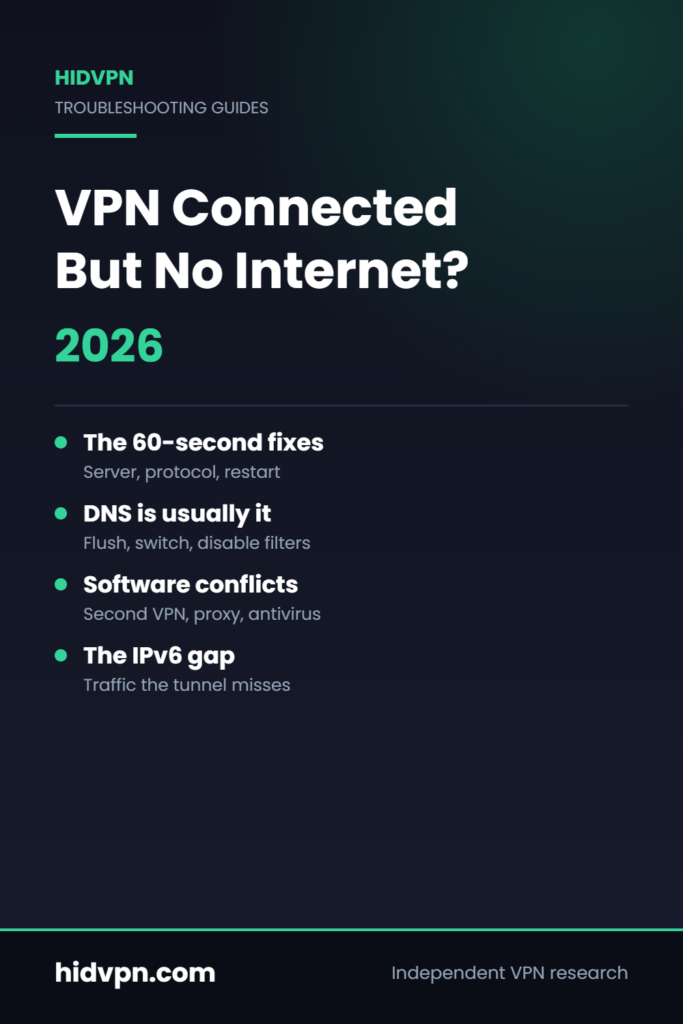
VPN connected but no internet is a frustratingly specific failure: the app says connected, its timer is running, yet websites do not load. In most cases, that symptom points to a DNS configuration problem or a software conflict—not a broken subscription.
Across the most common Windows 10, macOS, iPhone, Android, Fire TV, router, and VPN software failures, the quickest diagnosis is isolation. You’ll test the connection without the tunnel, then check DNS, protocols, filtering, IPv6, and competing network tools. As of 2026, modern VPN apps commonly support WireGuard and OpenVPN, but their automatic connection modes and diagnostic tools differ substantially.
The key distinction is simple: “connected” confirms authentication and tunnel negotiation, not working web access. DNS, routing, firewall rules, a default gateway, or a virtual network adapter can fail after authentication succeeds.

First, Confirm It's The VPN
Disconnect the VPN, reload the same page, and then try a second unrelated website. If both pages fail without the VPN, the VPN is probably not the cause; investigate general internet connectivity, the router, or your ISP. If both work normally, reconnect and continue with VPN-specific tests.
If the VPN connects but your IP hasn’t changed, check an IP lookup site before assuming the tunnel failed. Split tunneling may exclude your browser, a browser Proxy setting may force traffic elsewhere, or the lookup page may be showing a cached result. Check both the public IPv4 and IPv6 addresses where the site provides them.
We recommend recording the VPN brand, device model, operating system, network type, server location, protocol, and exact error before changing settings. Support teams can interpret diagnostic logs much more accurately when they know whether the failure occurred on home Wi-Fi, mobile data, or a public network. A two-minute record can save several rounds of reinstalling and reconfiguring.
- Test one normal website and one simple text-heavy site.
- Note whether every application fails or only one browser.
- Record the time, server, protocol, and whether the IP address changed.
The 60-Second Fixes
Use one change at a time. Reconnecting can obtain a fresh route, DNS state, and server session, while changing three settings together makes the real cause difficult to identify. In most cases, a nearby server and a protocol change resolve transient failures more reliably than reinstalling the VPN software.
- Disconnect and reconnect to the same server once.
- Select a different nearby server, preferably in the same country or region.
- Fully quit and reopen the VPN app rather than merely closing its window.
- Switch protocols in this order: WireGuard, OpenVPN UDP, then OpenVPN TCP.
- Restart the device; restart the router only if other devices also have trouble.
WireGuard and OpenVPN UDP often provide lower overhead and better speed, while OpenVPN TCP may behave more reliably on unstable or restrictive network paths. VPN brands expose different names—such as “Automatic,” “Smart,” “IKEv2,” or “NordLynx”—so choose the closest equivalent in your app instead of copying another provider’s menu instructions.
After each change, spend five minutes testing two unrelated websites and run ping 1.1.1.1. If the IP responds but websites fail, suspect DNS; if the ping fails too, investigate routing, firewall settings, the adapter, or the network itself.
DNS Is the Usual Culprit
Watch: the 2-ping test that tells you if it’s DNS (23 seconds)
DNS translates a name such as example.com into an IP address. A VPN tunnel can be authenticated and encrypted while the DNS server assigned by the VPN is stale, unreachable, or being overridden by the browser, router, or another security product. The result looks exactly like VPN connected but no internet: the browser cannot find the destination even though the tunnel exists.
On Windows 10, open Command Prompt and run ipconfig /flushdns. On macOS, open Terminal and run sudo dscacheutil -flushcache; macOS may produce no success message. Reconnect the VPN, close and reopen the browser, then test again.
Test DNS independently by running:
ping 1.1.1.1ping example.com
If the first command receives replies but the domain command fails, the DNS path is the likely fault. Try the provider’s own DNS setting first. If that fails, test one trusted public resolver, such as OpenDNS, using its OpenDNS support instructions; change only one resolver at a time.
Browser settings can fight the tunnel. Temporarily disable Secure DNS or DNS-over-HTTPS, clear the browser cache, and test a private window or browser safe mode. For a plain explanation of DNS requests, routing, and encrypted tunnels, read how a VPN works. DNS uses port in traditional queries, although encrypted DNS methods use other transport patterns, so firewall rules can affect these tests differently.

Ad-Blocking and Filtering Features
Provider-level DNS filters—such as CleanWeb, Threat Protection, tracker blocking, or custom malware protection—can occasionally block a hostname that a page needs. A news homepage may load while its login widget or video player fails because a required third-party content-delivery hostname was classified as tracking content.
This pattern differs from a dead connection. If several unrelated websites load but one site, login form, image host, or player fails, filtering or browser settings are more likely than complete VPN routing failure. We found that temporarily disabling every filtering layer is a useful isolation test, but it should not be treated as the permanent fix.
- Turn off ad blocking, malware filtering, and custom DNS protection.
- Disconnect and reconnect the VPN.
- Test the same page in a private browser window.
- Reactivate protections one at a time until the failure returns.
Check the provider’s blocklist or event log if available. Record the blocked hostname and add a narrow exception only if the provider supports it. This preserves protection for the rest of the connection instead of permanently disabling all filtering. In 2026, many VPN apps combine DNS filtering with browser or device controls, so check both the VPN dashboard and the browser’s extension list.
Conflicts With Other Software
Network conflicts are a leading explanation when the app says connected but traffic disappears. Common causes include a second VPN, manual Proxy settings, a corporate security agent, antivirus software performing TLS inspection, firewall settings, or a browser extension that redirects traffic.
Use the rule one tool per traffic path. Fully quit other VPN software, disable the manual proxy, pause HTTPS inspection briefly for testing, and reconnect before deciding which product is responsible. Don’t delete profiles or reinstall until you capture diagnostic logs.
Split tunneling can create an apparent inconsistency: one browser or application uses the VPN while another uses the normal adapter, DNS route, or proxy. Check whether the failing browser is included or excluded. Also confirm user permissions; on Windows and macOS, the VPN app needs permission to create or control its network adapter and VPN configuration profile.
Search logs for phrases such as DNS failure, route rejected, adapter unavailable, authentication succeeded, or firewall blocked. Meraki VPN deployments, L2TP/IPSec profiles, and consumer VPN software can install overlapping routes or adapters. Remove an inactive profile only after confirming it is no longer needed and that you can recreate it.
For a controlled test, disable one competing tool, reconnect, and run both the IP lookup and ping 1.1.1.1 checks. Restore the security feature immediately after testing if it is not the cause.
IPv6 and the Leak Gap
Some networks provide IPv6 while the VPN tunnel carries only IPv4. IPv6 requests may then follow a route the VPN does not support, causing selected websites to stall or appear unreachable. This can affect only services with IPv6-enabled servers while ordinary IPv4 sites continue to load.
A visible IPv6 address does not automatically prove a security breach. It can, however, reveal a routing gap or an incomplete leak-protection configuration. Run an IP and DNS leak test once disconnected and once connected, recording the IPv4 and IPv6 results rather than relying on a single displayed address.
- Disconnect the VPN and confirm that both IPv4 and IPv6 work normally.
- Reconnect and compare the public addresses and DNS providers.
- Enable the VPN provider’s IPv6 protection if it offers that control.
- If not, temporarily disable IPv6 on the active network adapter.
- Repeat the website, IP, and ping tests, then restore the original TCP/IP settings if nothing changes.
IPv6 uses 128-bit addresses, compared with IPv4’s 32-bit addresses, and the two protocols can follow different routes. If disabling IPv6 fixes the fault, send that result and your diagnostic logs to the provider rather than leaving unrelated network settings altered.
When It's the Network, Not the Device
Use mobile data as the cleanest isolating test. Connect the same device to a phone hotspot, activate the VPN, and load the same pages. If the connection works over mobile data but fails on Wi-Fi, investigate the home router, ISP, or local network path—not the VPN subscription.
Router settings that can interfere include custom DNS, parental controls, firewall rules, MTU values, IPv6 behavior, and blocked VPN protocols. Restart the router, test another Wi-Fi band, and temporarily return custom router DNS to automatic. Record every original value before changing an advanced setting.
Check the default gateway. On Windows, run ipconfig or ipconfig /all; on macOS, use Network settings or route -n get default. A missing or incorrect gateway points toward a local TCP/IP or router problem. If the gateway is present but ping 1.1.1.1 fails only with the VPN, focus on protocol, firewall, MTU, or route handling.
For example, a home router may permit OpenVPN TCP but mishandle WireGuard UDP. Changing the protocol can restore the tunnel without changing the VPN brand or subscription. If the router itself will handle the tunnel, see how to set up a VPN on a router before editing firmware or route tables.
Device-Specific Quirks
Windows
Open Network Connections and check whether the VPN network adapter exists and is enabled. Capture the adapter properties first, review Windows Defender Firewall rules, and use ipconfig /all to confirm DNS servers and the default gateway. Reset the adapter only after recording custom settings; an adapter reset can remove manually configured routes.
macOS
Inspect VPN configuration profiles, Network extensions, DNS servers, and login-item security tools. Remove an obsolete profile only when it belongs to the affected VPN and you can recreate it. A leftover network extension can intercept traffic even after the main app is closed.
iPhone
Test for a conflict with iCloud Private Relay or another content filter. Turn off the competing privacy relay temporarily, reconnect the VPN, and restore the setting after testing if appropriate. Check whether the failure affects Safari only or every application.
Android
Review battery optimisation and background restrictions. Android may suspend VPN software when the screen locks, so set the VPN app to unrestricted battery use for a controlled test and check whether the tunnel remains active after waking the device.
Fire TV
Restart the device and verify that the VPN remains active when the streaming app opens. If the VPN app is suspended in the background, reconnect immediately before launching the app; the Fire TV VPN setup guide covers device-specific setup details.
Windows adapter resets and Android battery controls address different failure patterns. Desktop network commands should not be applied to mobile devices.
Still Stuck? Use Your Provider's Guide
Contact support with useful evidence, not just “the VPN doesn’t work.” Gather the device model, operating system version, VPN protocol, server location, time of failure, exact error message, IP lookup result, ping results, and relevant diagnostic logs. Also state whether the same fault occurred on Wi-Fi and mobile data.
A provider-specific guide is appropriate when the problem occurs only with one VPN brand, one device, a particular protocol, or one server group. Use the NordVPN not working fix guide or Surfshark not working fix guide for app-specific menus rather than applying instructions intended for a different VPN software package.
If a streaming service shows a proxy error, treat it as a service-detection message. It means the service identified VPN or proxy traffic; it does not prove that ordinary internet connectivity is broken. Test unrelated websites and record whether they load.
Ask the provider for help when several servers fail, the same fault appears on two networks, or reinstalling could remove custom profiles. Microsoft’s Wi-Fi troubleshooting guidance is also useful when the VPN is not the cause. Based on our analysis, logs plus a mobile-data comparison give support teams far more to work with than repeated reconnect attempts.
Key Takeaways
“Connected” describes VPN authentication, not necessarily working web access. DNS, firewall rules, proxies, adapters, IPv6, and routing can fail after authentication succeeds. In 2026, use this short action plan before changing router or adapter settings:
- Confirm whether the connection fails without the VPN by disconnecting and reloading the same page.
- Try a nearby server, then cycle through WireGuard, OpenVPN UDP, and OpenVPN TCP one at a time.
- Flush DNS, compare pings against an IP address and a domain, and temporarily review Secure DNS or DNS-over-HTTPS.
- Check for conflicts: other VPNs or proxies running at once, filtering tools, browser settings, firewall rules, split tunneling, and IPv6.
- Test on mobile data and save your diagnostic logs before resetting adapters or router settings, then send the results to your provider if the problem remains.
These steps isolate the cause in most cases, but the right fix depends on your device, network, protocol, router, and VPN software. A VPN timer proves a session exists; your tests prove whether traffic can travel.
Frequently Asked Questions
How do I fix VPN connected but no internet?
Start by disconnecting the VPN and loading the same page again. If the page still fails, troubleshoot your Wi-Fi, router, ISP, or device rather than the VPN; if it works without the VPN, try another server, protocol, and DNS test.
Why does my VPN connect but websites won't load?
A VPN can connect successfully while DNS, routing, firewall rules, or a proxy prevents websites from loading. Flush your DNS cache, test `ping 1.1.1.1`, switch protocols, and check whether another VPN or security tool is controlling the network connection.
Why does my VPN say connected but my IP address hasn't changed?
Check your public address at an IP lookup site after connecting. Split tunneling, a browser proxy, delayed lookup results, or an IPv6 route can make the address appear unchanged even though the VPN tunnel is active.
Why does my VPN connect but streaming doesn't work?
A streaming service showing a proxy error has detected VPN or proxy traffic; that message doesn’t prove your general internet connection is broken. Test ordinary websites, try a different server or protocol, and check the VPN provider’s current compatibility guidance.
Why does my VPN make websites load slowly?
Slow loading can result from a distant server, congested route, UDP packet loss, MTU problems, or filtering by the network. Test a nearby server, compare WireGuard with OpenVPN TCP, and use the provider’s speed troubleshooting steps, including this guide to slow VPN streaming speeds.
What should I test first when the VPN is connected but there is no internet?
If your VPN app shows connected but no internet access, first disconnect it and test two unrelated websites. Then run `ping 1.1.1.1` and a domain ping, flush DNS, and test the same device over mobile data to separate DNS, routing, and router faults.