
HidVPN earns a commission if you buy through some of the links on this page. It doesn’t change what we write. Our affiliate disclosure.
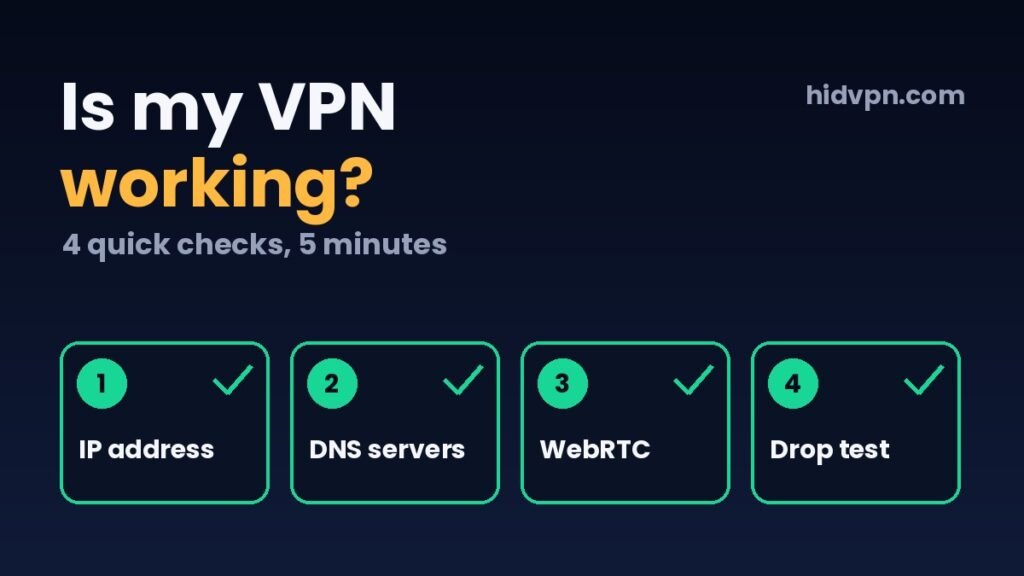
Is my VPN working? The app saying “Connected” only tells you a tunnel exists. It doesn’t tell you whether your traffic is using it. To know, you need four checks: the IP address websites see, the DNS servers answering your lookups, what your browser reveals through WebRTC, and what happens when the connection drops.
All four take about five minutes and need nothing more than a browser and your VPN app. Below is how to run each one, what a pass and a fail look like, and what we saw in Sydney this month when we ran checks 1 to 3 on Proton VPN and CyberGhost, and the drop test on NordVPN.
Table of Contents
- Start with your address when the VPN is off
- Check 1: which IP address do websites see?
- Check 2: whose DNS servers answer your lookups?
- Check 3: does your browser hand out your real IP?
- Check 4: what happens when the connection drops?
- What we saw running these checks on two VPNs
- A check failed: where to look first
- Signs that look like proof but aren’t
- Questions people ask about checking a VPN
- Sources
Key Takeaways
- Is my VPN working? Check four things: your public IP, your DNS servers, your WebRTC result and what happens when the VPN drops.
- Write down your normal IP address and internet provider with the VPN off first. Every check compares against it.
- A leak test that shows “0 DNS servers detected” is not a pass. Run a second DNS test to see which servers answered.
- “IPv6 not reachable” can mean the VPN blocks IPv6, or that your connection had no working IPv6 at that moment. Test with the VPN off too before reading anything into it.
- In our tests on 9 and 10 October 2026, Proton VPN and CyberGhost both passed the IP, DNS and WebRTC checks on Windows 11.
- In four forced drops on NordVPN (15 October 2026), our real IP never appeared, with the kill switch on or off. The kill switch was off on our laptop, so check yours.
Start with your address when the VPN is off
Every check below compares two states: VPN off and VPN on. So the first step is knowing what “off” looks like on your connection.
- Disconnect the VPN.
- Open our IP and DNS leak test (or any leak test site).
- Write down three things: your IPv4 address, the internet provider’s name shown next to it, and the names of the DNS servers. If an IPv6 address appears, note that too.
Your IP address is the number that identifies your connection to every site you visit. Your provider’s name matters more than the number, because it’s easier to spot. When we ran this at home in Sydney, the VPN-off result showed our provider’s name next to the IPv4 address, an IPv6 address, and a list of DNS servers that all belonged to the same provider. With a VPN working, none of those should appear.
Do this on the network you’re about to test. Your home connection, your phone’s mobile data and the office Wi-Fi each have their own addresses and DNS servers, so a baseline from one doesn’t apply to the others.
Check 1: which IP address do websites see?
Connect the VPN, wait until the app says it’s connected, and reload the leak test page. Look at the IPv4 address and the name next to it.
- Pass: the address is different from your baseline, and the provider name belongs to a hosting or data-centre company, often one you’ve never heard of. The location shown should roughly match the server you picked.
- Fail: you still see your own provider’s name, or the same address you wrote down.
Don’t worry if the city is a little off. IP location databases are often wrong by a few hundred kilometres. When we connected CyberGhost to a Sydney server, one site placed the address in Moranbah, a mining town in Queensland. The address belonged to the VPN’s network, which is the part that matters.
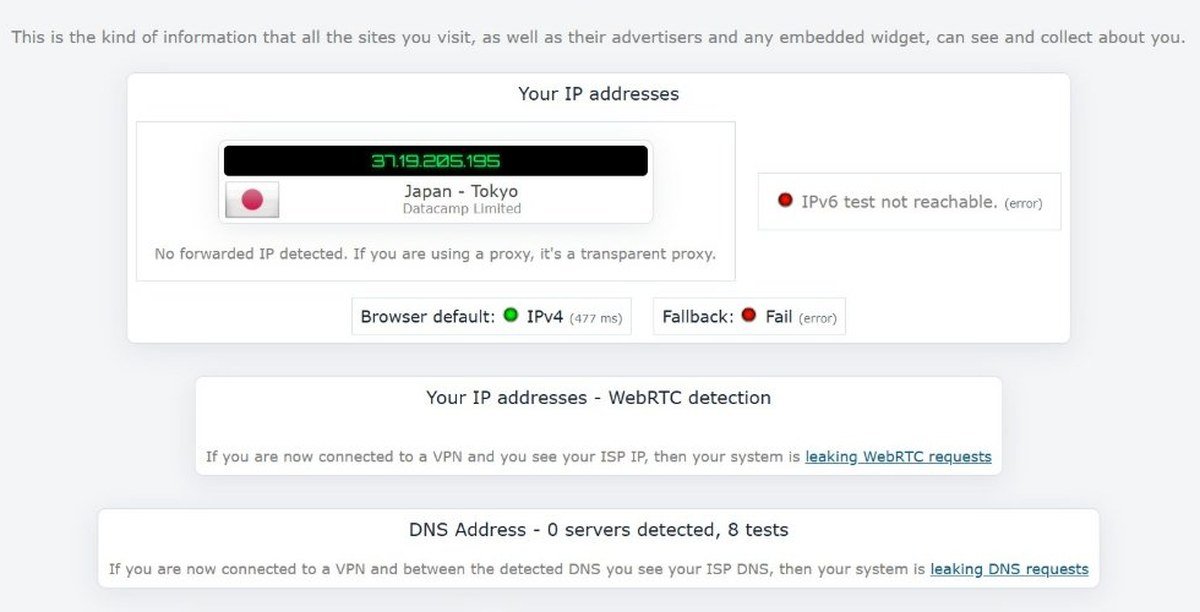
Don’t worry about an unfamiliar company name either. VPN providers rent servers from data centres, so the IP often shows the data centre’s name, not the VPN’s. Our Proton VPN connection showed up as a company called Datacamp Limited, registered in the UK, with the server in Tokyo. That’s normal.
A quicker version of this check: type “what is my IP” into a search engine with the VPN on and off. If the address changes, the main tunnel is up. It won’t tell you about DNS or WebRTC, which is why the next two checks exist.
Check 2: whose DNS servers answer your lookups?
Watch: a 30-second VPN leak test (HidVPN Short)
Every time you open a site, your device first asks a DNS server (the internet’s address book) where that site lives. If those questions go to your internet provider while the rest of your traffic goes through the VPN, your provider still gets a list of every site you visit. That’s a DNS leak, and the VPN app will still say “Connected” while it happens.
With the VPN on, look at the DNS section of the leak test.
- Pass: the DNS servers belong to your VPN provider, or to the data centre its servers sit in, and none of them carry your internet provider’s name.
- Fail: any server in the list belongs to your internet provider. One is enough. Look twice at public resolvers too, such as Google or Cloudflare: if your VPN app says it uses its own DNS and those show up, your lookups are going somewhere the app didn’t send them.
- Inconclusive: the test finds no DNS servers at all.
That third result caught us out twice. On both Proton VPN and CyberGhost, ipleak.net reported “0 servers detected” in its DNS section while the VPN was connected. An empty result looks clean, but it only means that test didn’t catch any lookups. It doesn’t prove where they went.
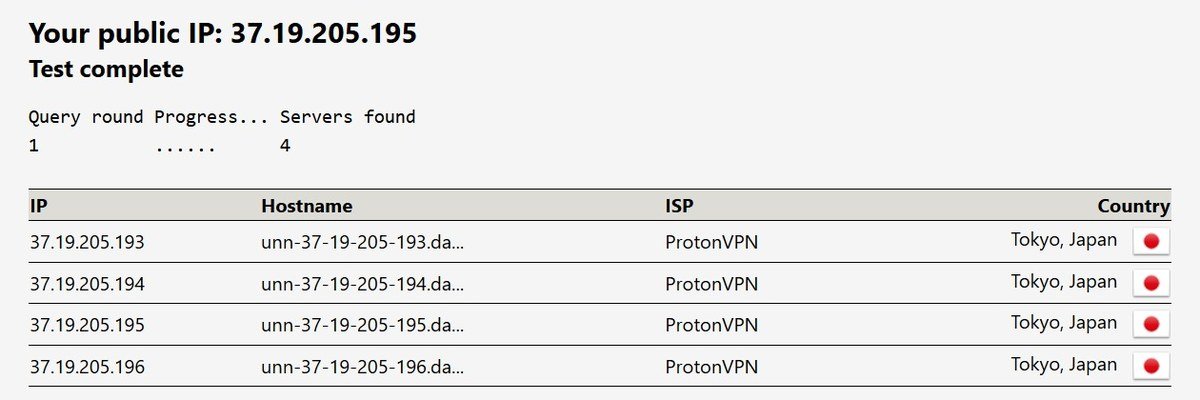
So we ran a second test on dnsleaktest.com, using its standard test. For Proton VPN it found four DNS servers, all labelled ProtonVPN, in Tokyo, the same city as our VPN server. For CyberGhost it found one server, run by the same network company as our CyberGhost server in Sydney. Neither showed our home provider, so both passed. Without the second test, we’d have been guessing.
If you do see your provider’s DNS servers, our guide to DNS and IPv6 leaks explains why it happens and how to check your device’s settings directly.
Check 3: does your browser hand out your real IP?
WebRTC is the browser feature that runs video calls and voice chat without a plug-in. To connect two people directly, it asks your device for its network addresses, and a web page can read the answer. On some setups that answer includes your real IP address, even with the VPN connected.
Most leak test pages, including ours, run a WebRTC check automatically. Read it like this:
- Pass: the section is empty, shows only the VPN’s address, or shows only a local address that starts with 192.168, 10. or 172.16 to 172.31. Those local addresses only exist inside your home network and say nothing about who you are.
- Fail: it shows your baseline address, or your provider’s name.
With the VPN off, a WebRTC result showing your real address is expected. On our CyberGhost baseline, the WebRTC section listed our real IPv4 address with the VPN off, then only the VPN address once we connected. Proton VPN’s result was empty when connected.
If this check fails, turn on the VPN app’s WebRTC or leak protection setting if it has one; otherwise the fix is in the browser. Try the VPN provider’s browser extension if it has one, or a browser setting that limits WebRTC. Then test again in each browser you use, because the result can differ between them.
Check 4: what happens when the connection drops?
The first three checks show the VPN working while it’s connected. This one shows what happens in the few seconds when it isn’t: a server restart, a Wi-Fi hiccup, the laptop waking from sleep. Without protection, your device sends traffic over your normal connection until the VPN comes back, and you’d never notice.
That protection is the kill switch. It blocks internet traffic whenever the tunnel is down. To test it:
- Turn the kill switch on in the VPN app’s settings. On Proton VPN’s free plan it was there under the name Kill switch, with a Standard and an Advanced mode. CyberGhost had its Automatic Kill-Switch on by default.
- Connect the VPN and open a page that reloads on its own, or start a continuous ping to a site in a terminal window.
- Switch to a different server in the app, or turn your Wi-Fi off and on. Either forces a short drop.
- Watch the page or the ping. While the VPN reconnects, nothing should load. If pages load before the app shows “Connected” again, traffic is getting out without the tunnel.
- Reload the leak test once the VPN is back and confirm the IP is the VPN’s again.
Watch: testing a kill switch in 3 steps (HidVPN Short)
What happened when we ran the drop test on NordVPN
We ran check 4 on NordVPN (Windows app version 8.13.1) on a Windows 11 laptop on home Wi-Fi in Sydney on 15 October 2026. While we forced each drop, a browser tab checked the public IP address about twice a second and logged every answer. When we opened the app, its Internet Kill Switch was off, so we tested both ways.
| Drop | Kill switch | What the monitor saw | Real IP shown? |
|---|---|---|---|
| Switched server, London to Sydney | Off | About 5 seconds without an answer, then the Sydney VPN address | No |
| Switched server, Sydney to London | On | About 7 seconds blocked, then the new London VPN address | No |
| Wi-Fi off for about 5 seconds | On | About 24 seconds of failed requests, then the same London VPN address | No |
| Wi-Fi off for about 5 seconds | Off | About 23 seconds of failed requests, then the same London VPN address | No |
NordVPN didn’t expose our real address in any of the four drops, even with the kill switch off. During a server change or a short Wi-Fi drop, the app held traffic until the tunnel came back. That doesn’t make the kill switch pointless. It’s there for the cases we didn’t simulate: a longer outage, the app crashing, or a tunnel that fails to come back. Turn it on, and check it’s on after updates, because the setting was off on our laptop.
For Proton VPN and CyberGhost, we confirmed that a kill switch was available and switched on, but we haven’t run the drop test on either yet. Run it yourself on the app you use: it takes two minutes.
A drop is different from a leak. A VPN that disconnects often is annoying, but with a working kill switch you stay protected while it reconnects. A VPN that leaks DNS or WebRTC while it says “Connected” is exposing you without any warning. If you have to choose which problem to fix first, fix the leak.
What we saw running these checks on two VPNs
We ran checks 1 to 3 on a Windows 11 laptop on a home connection in Sydney, and checked the kill switch setting in each app. We ran check 4, the drop test, on NordVPN only (see the section above). These are single tests on one network on one day, so treat them as a snapshot, not a ranking.
| Check | Proton VPN (free plan, 9 Oct 2026) | CyberGhost (Windows trial, 10 Oct 2026) |
|---|---|---|
| Server | Tokyo, picked automatically (the free plan doesn’t let you choose) | Sydney, WireGuard |
| 1. IP address | Pass: Proton server in Tokyo | Pass: CyberGhost server in Sydney |
| 2. DNS | ipleak.net: 0 found. dnsleaktest.com: 4 ProtonVPN servers. Pass | ipleak.net: 0 found. dnsleaktest.com: 1 server on CyberGhost’s network. Pass |
| 3. WebRTC | Pass: nothing shown | Pass: VPN address only |
| IPv6 | “Not reachable” with the VPN on, while IPv6 worked with it off: blocked by the VPN | “Not reachable” with the VPN both off and on that evening, so this test couldn’t show it either way |
| 4. Kill switch | Available on the free plan, we turned it on (drop test not run) | On by default (drop test not run) |
The IPv6 row shows why the baseline matters. With Proton VPN, our connection had working IPv6 when the VPN was off, so “not reachable” with it on meant the VPN was blocking IPv6, which is one of the two correct ways to handle it. The next evening, IPv6 was unreachable even with every VPN off, so the same result told us nothing about CyberGhost. Without the VPN-off test we’d have counted it as a pass.
We’ve also tested NordVPN and FastestVPN hands-on. You’ll find the full results in each review: Proton VPN, CyberGhost, NordVPN and FastestVPN. Our testing method explains the setup.
A check failed: where to look first
| What you saw | Likely cause | Try this |
|---|---|---|
| Your own IP with the app “Connected” | The tunnel didn’t come up, or the browser is excluded by split tunneling | Reconnect, switch protocol, and check the split tunneling list |
| Your provider’s DNS servers | The operating system is sending lookups outside the tunnel | Turn on the app’s DNS leak protection, remove manual DNS settings, then see our DNS leak guide |
| Your real IP in the WebRTC section | The browser is reporting it | Limit WebRTC in the browser or use the VPN’s extension, then re-test each browser |
| Your normal IPv6 address | The VPN only covers IPv4 | Turn on the app’s IPv6 leak protection if it has one |
| Pages load during a reconnect | The kill switch is off or not working | Turn it on and repeat check 4; see how kill switches work |
| “Connected” but nothing loads | A tunnel or DNS problem, not a leak | See VPN connected but no internet |
| Fine on Wi-Fi, fails on mobile data | The network blocks the protocol | See VPN works on Wi-Fi but not mobile data |
After any change, run all four checks again, not only the one that failed. Fixing DNS by switching protocol, for example, can change how the kill switch behaves.
Signs that look like proof but aren’t
The app’s “Connected” label. It confirms the tunnel exists. Checks 2 and 3 exist because traffic can leave outside that tunnel while the label stays green.
A key icon or “VPN” badge on your phone. On Android and iPhone, this means a VPN profile is active. It’s a good sign, but it won’t tell you about DNS or WebRTC in your browser. Run the same leak test page on the phone.
A website showing another country. Some sites remember your location from earlier visits, your account settings or your phone’s GPS. Google, for example, can use your device location and account history, so search results may still look local with the VPN on. The IP check is more reliable than any site’s guess.
Slower speeds. Traffic going through a VPN server, especially a distant one, often gets slower. That’s a sign the traffic is taking a longer path, not proof that all of it is. In our Proton VPN test on fast.com, latency went from 5 ms to 114 ms on the Tokyo server, which is roughly what the distance from Sydney explains.
Questions people ask about checking a VPN
How do I know if my VPN is working?
Compare a leak test with the VPN off and on. With it on, the IP address and DNS servers should belong to the VPN, not your internet provider, and the WebRTC section shouldn’t show your real IP. Then test the kill switch by forcing a short disconnect.
Can a VPN say connected and still not protect me?
Yes. A DNS leak, a WebRTC leak or an IPv6 leak can all happen while the app shows “Connected”. That’s why the IP check alone isn’t enough.
How do I check if my VPN is working on my phone?
Open the same leak test page in your phone’s browser with the VPN off, then on, and compare. On Android, you can also turn on “Always-on VPN” and “Block connections without VPN” in the VPN settings so the phone itself blocks traffic outside the tunnel.
Why does Google still show my real location with a VPN on?
Google can use your device’s location setting, your account’s location history and your saved home address, not only your IP. Your IP can be in another country while Google still shows local results. Check the IP address on a leak test instead.
How often should I check my VPN?
After installing it, after any app update, when you change networks you use often, and any time something seems off. The checks take five minutes, and results can change from one network to the next.
Sources
- HidVPN hands-on test logs: Proton VPN Free, Windows 11, Sydney, 9 October 2026; CyberGhost Windows trial, Windows 11, Sydney, 10 October 2026; NordVPN drop test, Windows app 8.13.1, Windows 11, Sydney, 15 October 2026.
- ipleak.net (IP, DNS, WebRTC and IPv6 detection).
- dnsleaktest.com (standard DNS test).
- Proton VPN support (kill switch settings).
- MDN Web Docs: WebRTC API.
Keep these four checks for next time
A VPN that passed today can fail after an app update, on a new network or in a different browser. Keep the routine short: baseline with the VPN off, then IP, DNS with a second test if the first finds nothing, WebRTC, and a forced drop. If your current VPN keeps failing the same check after you’ve worked through the fixes, that’s a reason to change provider. Our VPN comparison table and pricing comparison keep all 17 providers side by side.
See NordVPN’s current plans · See FastestVPN’s current plans. Prices change often, so check the current plan before you buy.